Fix Blocking Issues
Refocus relies on Apple’s Screen Time technology, which can sometimes behave in unexpected ways. Start with the steps below.
Try These First
In Refocus, go to Settings → Advanced Settings and press Fix App Blocking.
Disable other Screen Time management apps and unnecessary Apple Screen Time restrictions. Using multiple apps with Screen Time access can cause many side effects. Learn more.
Confirm whether you should have an active Stop Blocking session. If you do not, apps will remain blocked. See the Help & FAQ.
If you use Refocus Pro, check your Strict Mode. Modes such as Always Block and Unblock Limit are designed to prevent unblocking.
Where are Refocus Settings? On the Home tab—the first screen Refocus shows—press the gear icon in the top-right corner.
Find Your Issue
Continue with the section that best matches what you are seeing:
🔒 I Can’t Unblock Apps
🔓 Apps Aren’t Being Blocked
🔀 The Wrong App or Website Is Blocked
🌐 Website Blocking Isn’t Working
⏱️ Time Limits Activate Incorrectly
📱 The App Picker Crashes or Shows Deleted Apps
📊 Screen Time Reports Are Incomplete or Slow
🗑️ Apps Stayed Blocked After Deleting Refocus
These known issues have been reported to Apple. Refocus continues to develop workarounds that make the experience more seamless.
🔒 I Can’t Unblock Apps
If you see the screen on the left below, Refocus is not blocking the app. Either the app is blocked by your Apple Screen Time settings, or you encountered a bug in Screen Time technology.
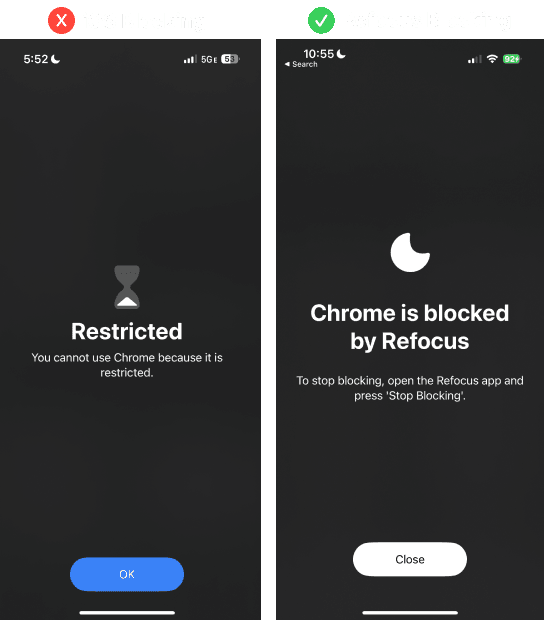
Check Your Stop Blocking Session
Make sure you have an active Stop Blocking session. Without one, apps will remain blocked.
If a Stop Blocking session is active but the problem continues, delete or recreate that session.
Refresh App Blocking
Go to Refocus Settings → Advanced Settings and press Fix App Blocking.
Remove Other Screen Time Restrictions
If the previous steps do not help, the apps may be blocked by another app or by Apple Screen Time itself.
Open the Apple Settings app, go to Screen Time, and turn everything off except Refocus permissions.
Under Apps With Screen Time Access, disable access for every other app. Using multiple apps with Screen Time permission increases the chance of this problem.
If you use multiple Screen Time apps, or are on iOS 18 or lower, apps can fail to unblock when a scheduled session ends or after pressing Stop Blocking.
Reset Strict Modes for Refocus Pro
If you use Unblock Limit or Always Block, set the Strict Mode back to Normal before unblocking. You can also use Reset Strict Modes in Advanced Settings. This button can optionally be hidden.

🔓 Apps Aren’t Being Blocked
Disable Other Screen Time Apps
Using multiple apps with Screen Time access can interfere with blocking. Open the Apple Settings app, go to Screen Time → Apps With Screen Time Access, and disable access for every app except Refocus. Then reopen Refocus and check whether apps are blocked. Learn more about using multiple Screen Time apps.
Check Apple’s Always Allowed List
Apple’s Always Allowed list can affect blocking behavior. Apps in Apple Settings → Screen Time → Always Allowed may stay unblocked when you block an entire category or use an Allowlist. Remove any app you want Refocus to block from Always Allowed.
Check the Number of Selected Apps and Websites
Blocking more than 50 apps or websites can cause apps not to block. Learn more about the blocking threshold.
Refresh the Blocking State
Unlock your phone. To preserve battery, Apple sometimes activates or removes blocks only while the device is unlocked and being used. If the phone has not been used for a while, is in Low Power Mode, or has a low battery, the blocking state may briefly be incorrect after you pick it up.
Open Refocus. Every time the app opens, it recalculates the blocking state.
Go to Refocus Settings → Advanced Settings and press Fix App Blocking.
Check Device Conditions
Turn off Low Power Mode. It reduces device performance and can delay background work. It can delay background work.
Update Refocus and iOS.
Restart the phone.
Apps can very rarely fail to block when a scheduled session starts, or fail to unblock when it ends. This should be less common—or entirely resolved—on iOS 18.
🔀 The Wrong App or Website Is Blocked
Known App and Website Pairings
Because Apple associates some apps and websites, blocking one can sometimes block another:
Blocking the Amazon app can also block Amazon Alexa. As a workaround, block amazon.com instead; it can block Amazon without blocking Alexa. (FB11988641)
Blocking facebook.com or m.facebook.com can also block Messenger. As a workaround, block the Facebook app, which automatically blocks facebook.com.
Blocking the Instagram or WhatsApp website can block the corresponding app.
Blocking the YouTube app can also block m.youtube.com in Safari. Use a third-party browser such as Chrome when you need to visit the website.
Blocking the Facebook app can also block m.facebook.com in Safari. Use a third-party browser such as Chrome when you need to visit the website.
Blocking the Facebook app can also block Muse app. As a workaround, block facebook.com, which automatically blocks Facebook app.
Check Other Screen Time Apps
Using an allowlist while another Screen Time app is active can cause allowlisted apps to be blocked. Disable Screen Time access for the other app.
Check Apple Communication Limits
During an active block, Apple Screen Time restrictions outside Refocus can affect communication apps. Go to Apple Settings → Screen Time → Communication Limits. Set both During Downtime and During Screen Time to Everyone.
🌐 Website Blocking Isn’t Working
Additional Websites and Third-Party Browsers
When using Additional Websites, or a third-party browser such as Chrome, website blocking may happen only after the page reloads. For blocking without page reloads, use Safari and select the website through the app & website picker. Learn how to block websites.
Known Website Limitations
Time Limits for websites work only with Safari.
With Time Limit, selecting www.reddit.com may not work. Select the Reddit app instead; this can block the website as well. (FB15160892)
On some earlier iOS versions, with Additional Websites, pinterest.com or twitch.tv or twitter.com may not block.
Disabled Safari Features
Depending on iOS version, During blocking, Safari private browsing or the ability to clear history may be disabled, and Google SafeSearch may be enabled. Learn about disabled Safari features.
⏱️ Time Limits Activate Incorrectly
The Limit Activates Too Early
A Time Limit may unexpectedly activate before the limit is reached. Learn more about Time Limit issues.
The Limit Activates Late
Time Limits can be delayed. Wait a minute while using the app. If the limit never activates, open Refocus and use Settings → Advanced Settings → Fix App Blocking.
A Website Limit Does Not Work
Website Time Limits work only with Safari.
📱 The App Picker Crashes or Shows Deleted Apps
The Picker Crashes or Freezes
The app & website picker can sometimes crash or freeze. See app picker troubleshooting. (FB15208071, FB11442734, FB12937776, FB11737092, FB11994816)
When creating or updating a session, the app may temporarily freeze while selected app icons load. (FB11836901)
Deleted Apps Still Appear
The picker may show apps that were previously deleted or that exist on another shared device, particularly on iOS 18 and later. Try the App Picker Reset Fix.
📊 Screen Time Reports Are Incomplete or Slow
Reports may be incomplete for new users or after Refocus was recently deleted and reinstalled. Reports inside Refocus begin populating from the time you first install the app.
Reports can lag, take a long time to load, or occasionally fail to load because the data is supplied by Apple Screen Time. Learn more about Screen Time reports.
🗑️ Apps Stayed Blocked After Deleting Refocus
Deleting Refocus before stopping an active block can leave apps blocked. Learn how to safely delete Refocus and fix this problem.
Still Not Working?
Refocus has limited visibility into what is happening on your device. To help us understand the problem, use the Contact Support button in Refocus and send a single screen recording captured while the problem is happening.
Please show:
The Refocus Home screen with the affected blocking session
The session’s details, including selected apps or websites, times, blocking type, and Strict Mode
The affected app or website opened
“Settings” app → Screen Time first page top-to-bottom and any other Screen Time settings relevant to the issue (ex. Content & Privacy Restrictions)
If the problem involves Time Limits, please also show:
The relevant activity in “Settings” app → Screen Time → See All App & Website Activity
The session’s Usage screen accessible from Refocus Home screen
The Refocus Report tab
Please also explain:
What you expected to happen
What happened instead
When the problem occurred and whether it happens consistently
Which troubleshooting steps you already tried
We know these problems are frustrating, and we’re sorry when they happen. Sometimes Refocus may be responsible for a bug; other times, the cause is Apple Screen Time. Either way, we care that Refocus works well for you, and your feedback helps us improve the experience. Thank you 🙏 ❤️