Enhance Lockdown
Are you finding Lockdown to not be restrictive enough? If yes, please read the directions below.
Set “Screen Time Passcode”
To prevent Screen Time permissions from being turned off:
Open the “Settings” app.
Tap “Screen Time”.
Tap “Lock Screen Time Settings” and follow the instructions.
Available on iOS 26.4 and later. For the best experience, iOS 27.0 or later is recommended.
Alternative Setup for Older iOS Versions
⚠️ This method is no longer recommended. If possible, update iOS and use the Screen Time passcode method above.
You can make Lockdown more restrictive by utilizing the Shortcuts app:
Setup a Shortcuts automation that will prevent you from accessing Apple’s “Settings” app.
As part of your Lockdown session, block the “Shortcuts” app to prevent yourself from being able to disable the shortcut.
Make sure that for your strict mode “Lockdown” option is switched to ON.
⚠️ WARNING: THE SHORTCUT METHOD CAN LOCK YOU OUT OF IMPORTANT APPS. USE AT YOUR OWN RISK.
Before You Begin: Tips for Using Refocus
You generally want to follow this advice: “If you have to disable the restrictions, they’re too restrictive.” Most people don’t use app blockers effectively. They start with heavy restrictions, then quickly delete the blocker because it’s too frustrating. The cold turkey approach is counterproductive — unblocking Refocus repeatedly is still progress. The key is to make gradual changes that stick. Start with manageable restrictions, and focus on consistency over drastic measures.
Refocus improves your focus by adding friction, unlike social media apps, which aim to remove friction to keep you hooked. For example, the infinite scroll was designed so users can browse endlessly without needing to click or load new pages, minimizing interruptions and increasing engagement. By increasing friction, you’re guaranteed to reduce your phone use over time.
📚 Read this for a more in-depth explanation of how to use app blockers like Refocus.
📺 Watch this video for a clear explanation of the concept of friction.
How To Setup Shortcuts To ‘Block’ Access To Settings App
TIP: SCROLL DOWN TO READ THE EXTRA TIPS ON HOW TO IMPROVE ON THIS METHOD
Directions:
Open “Shortcuts” app.
Tap “Automation” tab.
Press “New Automation.”
Search “App.”
Press “App (Ex. When ‘Weather’ is opened or closed’).
Next to “App,” press “Choose” and select the “Settings” app.
Tap “Run Immediately.”
Tap “Next.”
Press “New Blank Automation.”
Press “Add Action.”
Search “Refocus.”
Press “Is Lockdown Active?”
Under “Next Action Suggestions,” select “If.”
Look at the bottom and press “Search for apps and actions.”
Search “Open App.”
Press “Open App.”
Where it says “Open App,” tap “App,” and select “Refocus” app.
Drag-and-drop the “Open Refocus” to be right under “If Is Lockdown Active?”
Press “Done.”
Now, every time Lockdown is active, and you try to visit “Settings” app, you will be redirected back to Refocus.
Please note that if you still experience issues with this set up, please scroll down for more options!
Video:
Please note that if you still experience issues with this set up, please scroll down for more options!
Photos:
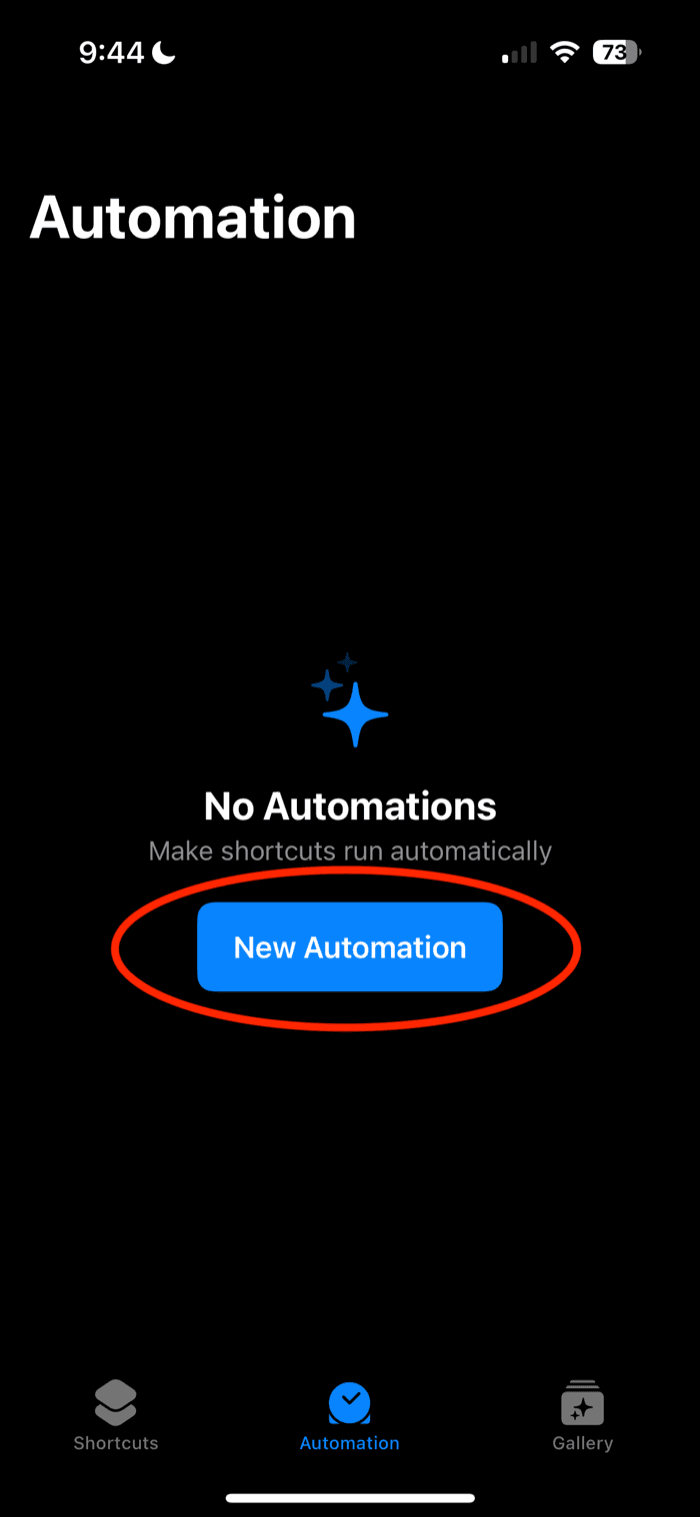
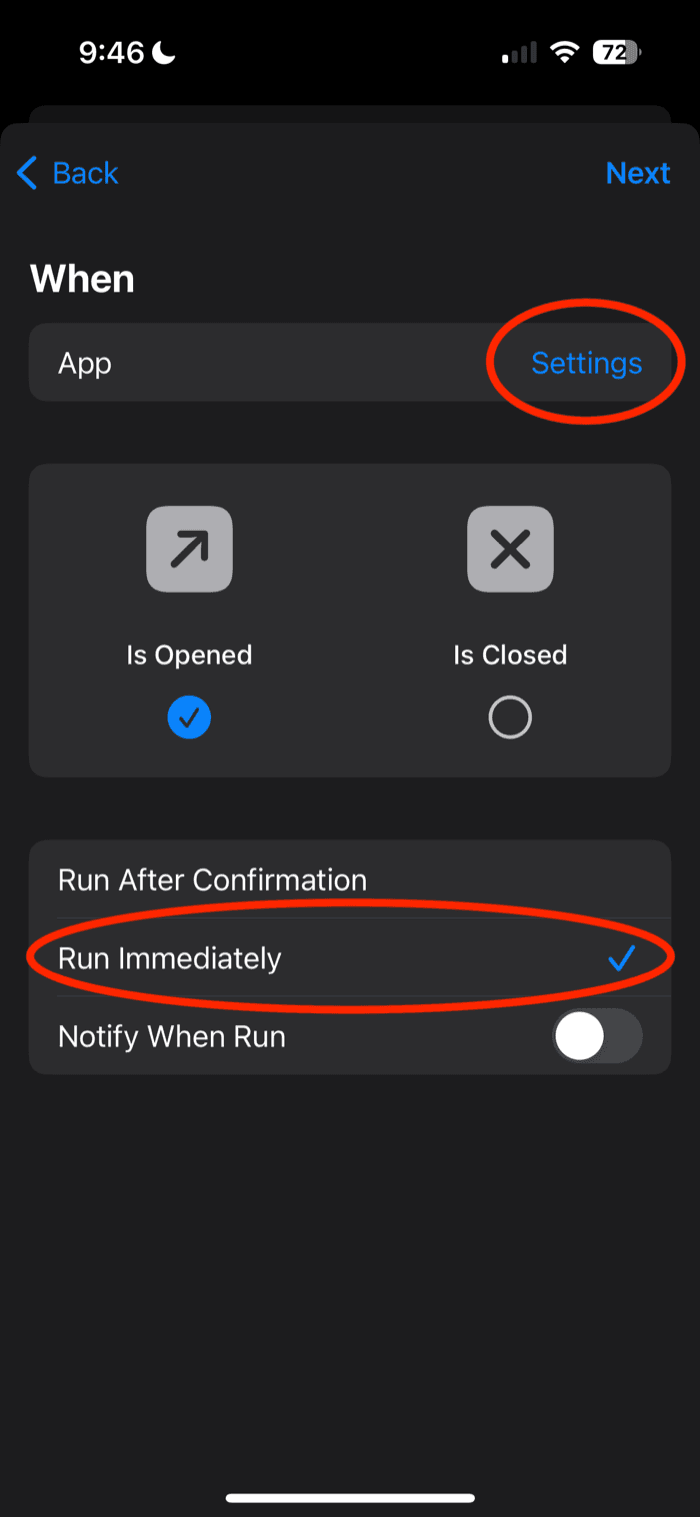
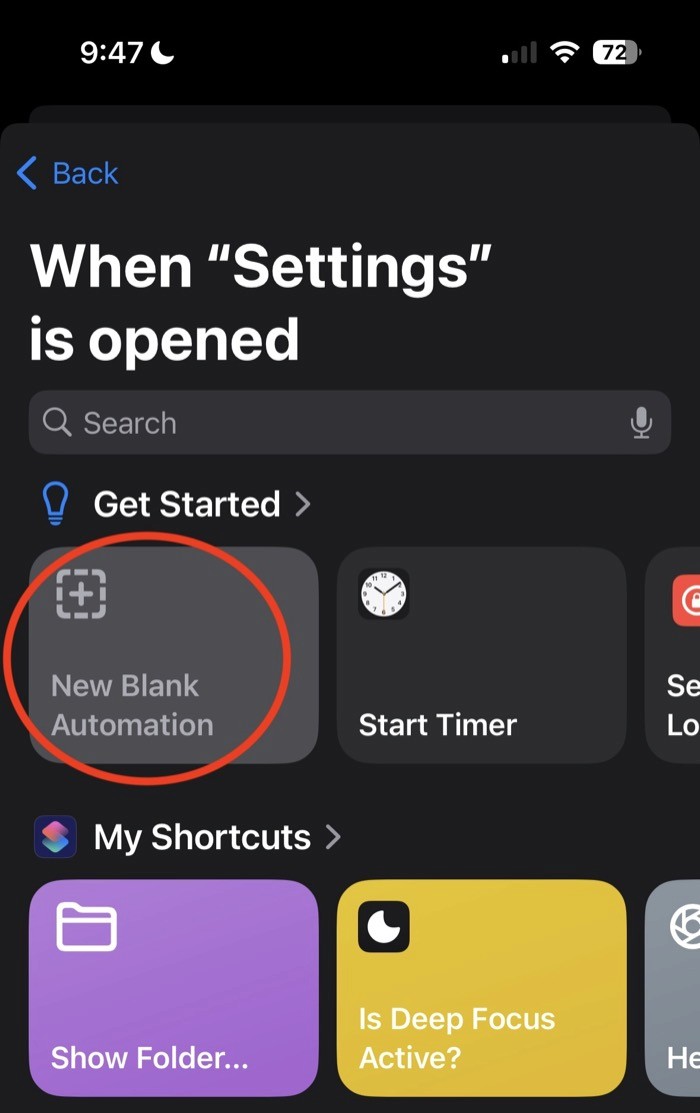
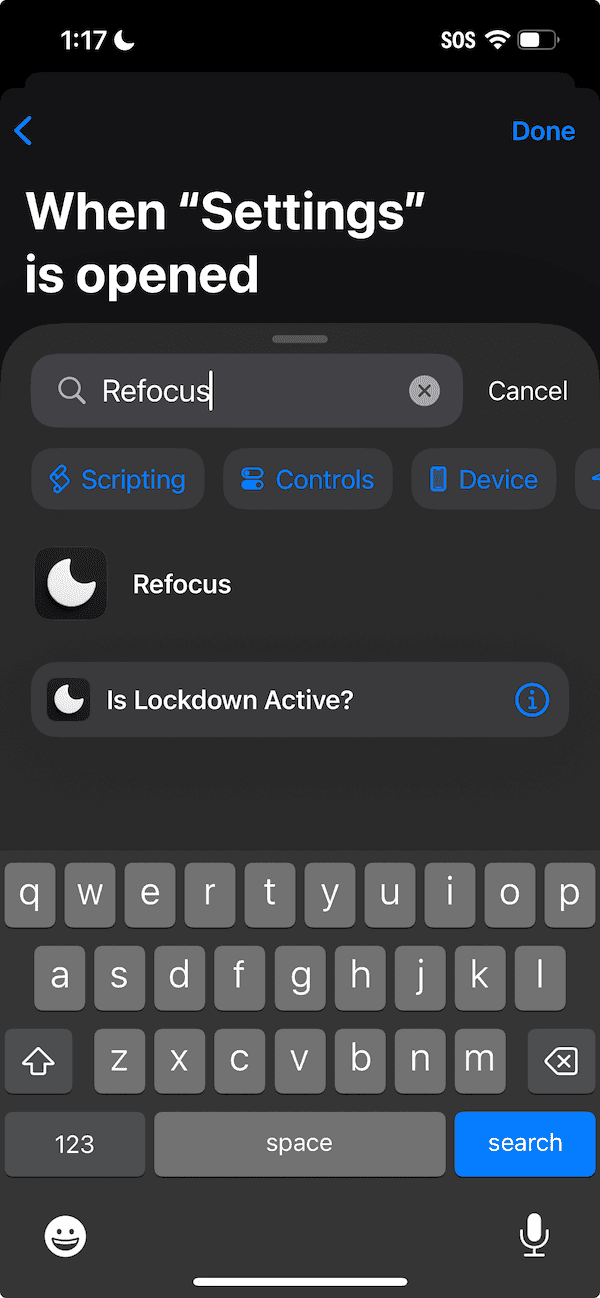
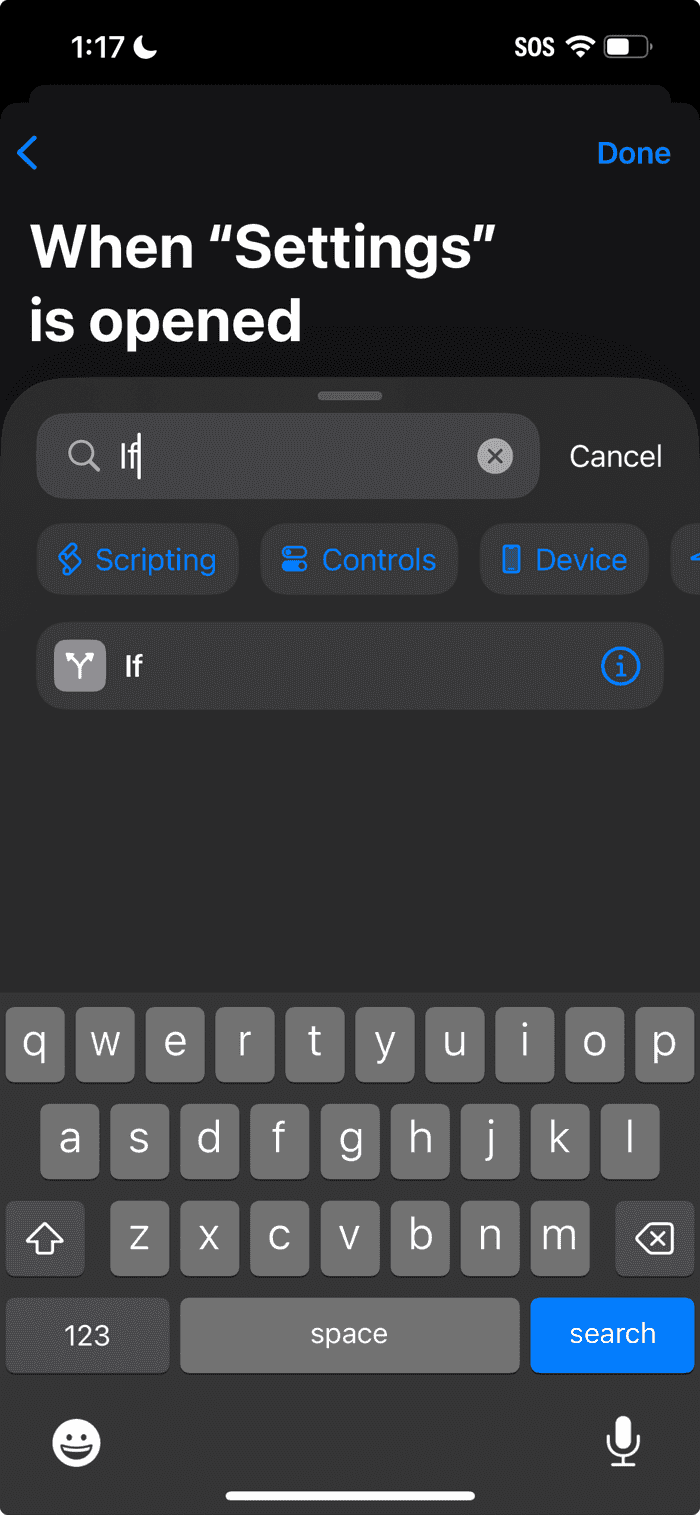
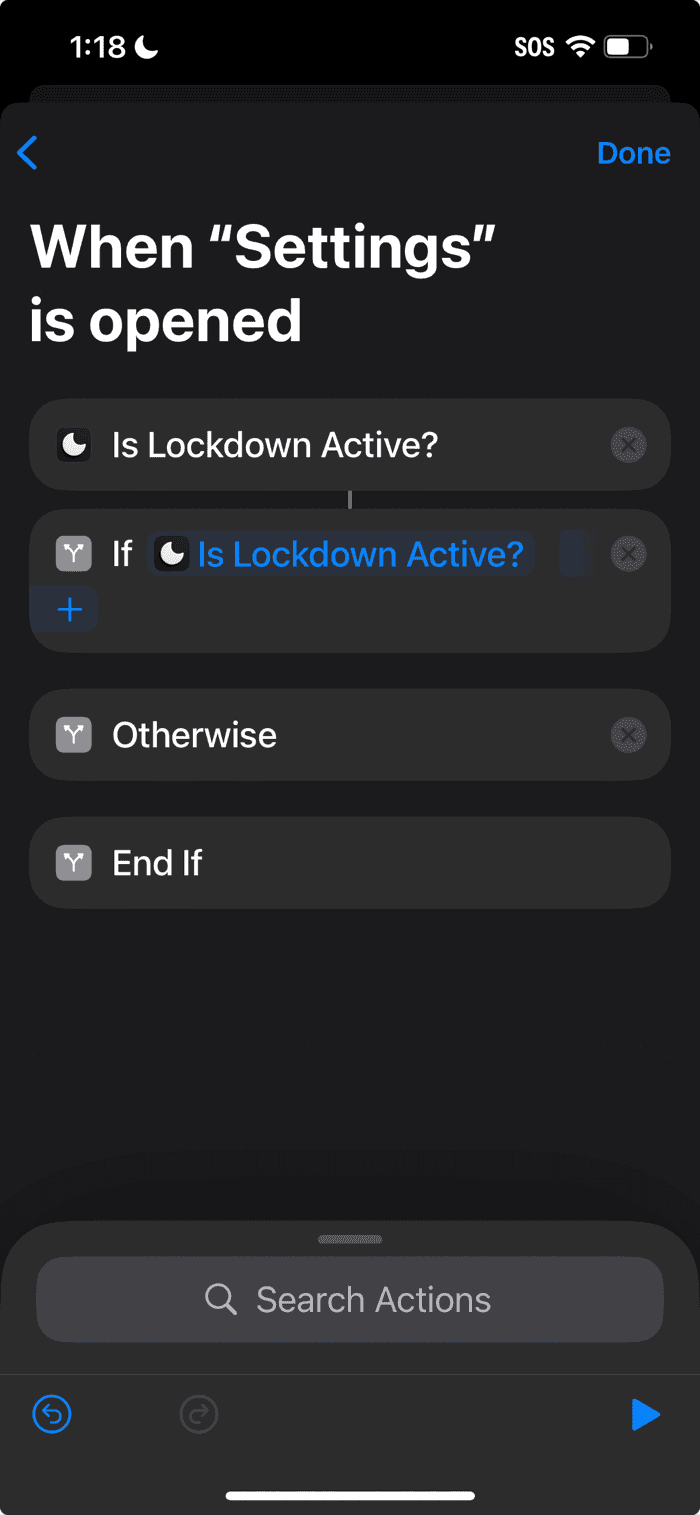
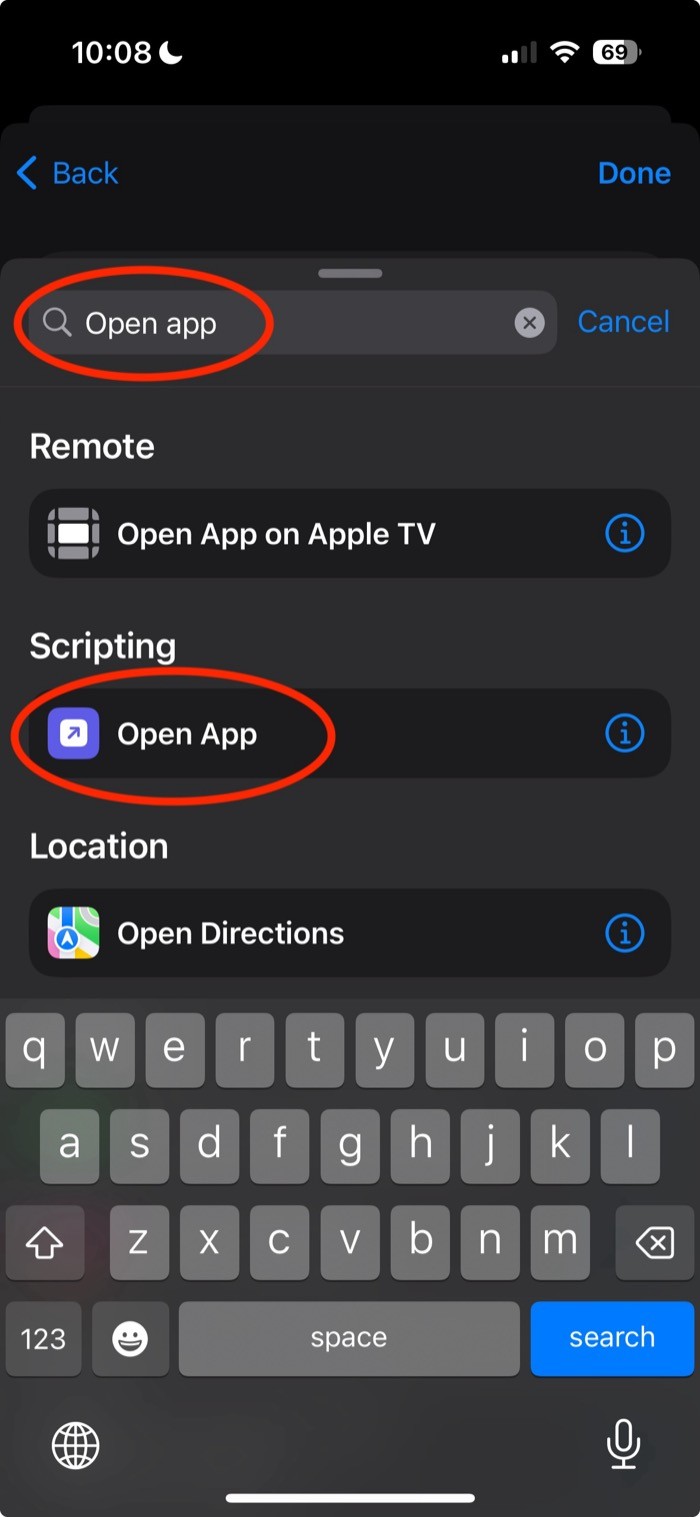
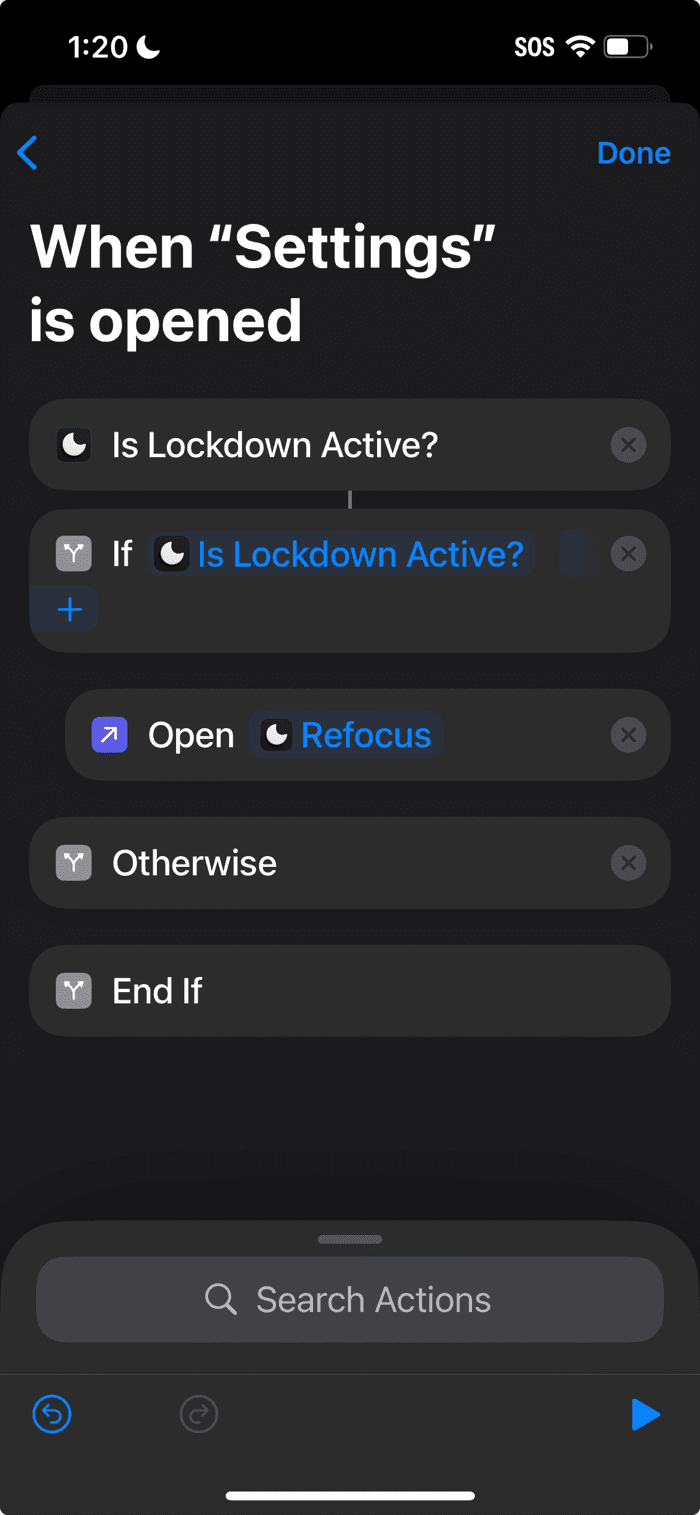
Please note that if you still experience issues with this set up, please scroll down for more options!
Tip #1 On Improving Shortcut
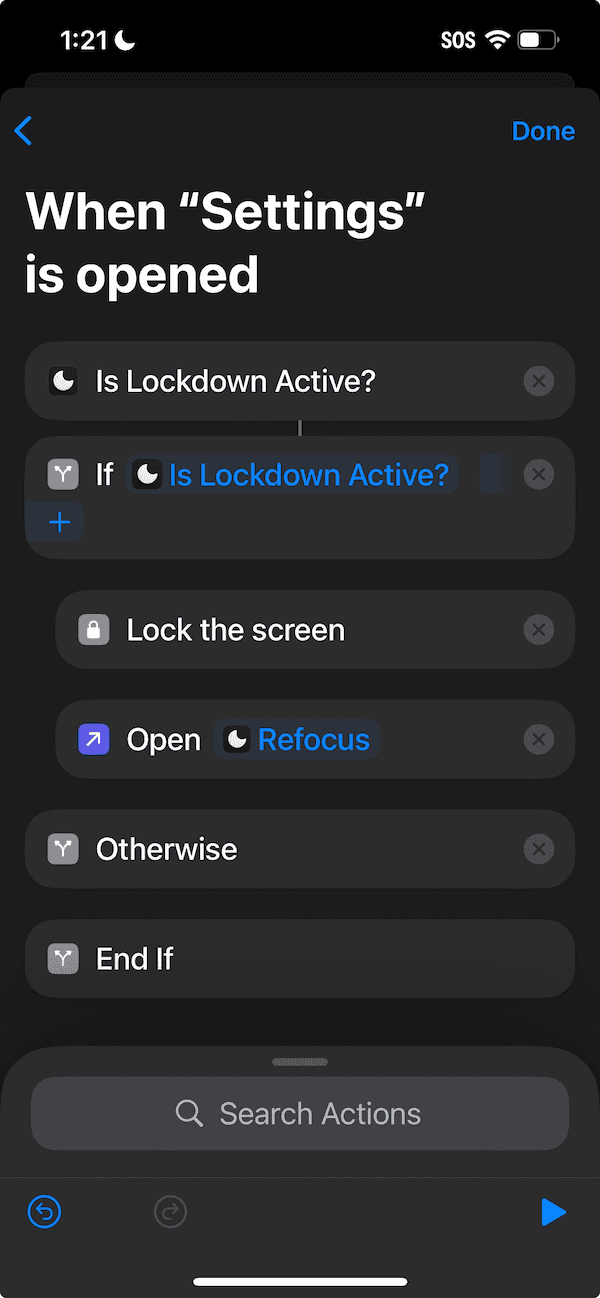
In addition to opening “Refocus” after visiting “Settings” app, you can also add “Lock the screen” to improve how quickly the shortcut blocks accessing the “Settings” app. This removes the “Open App” slowness.
Tip #2 On Improving Shortcut
There is also another way to make the shortcut to switch apps quicker. This removes the “Open App” slowness.
Open Apple “Settings” app
Press “Accessibility”
Press “Motion”
Turn On “Reduce Motion”
Turn On “Prefer Cross-Fade Transition”
Tip #3 On Improving Shortcut
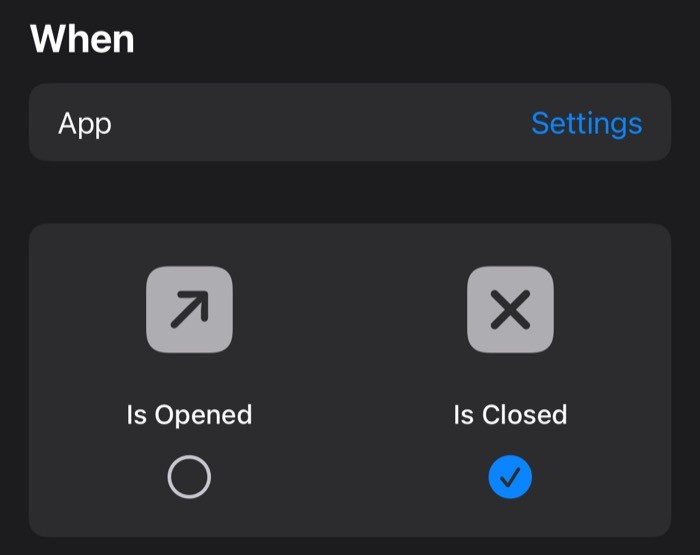
You don’t have to block all of “Settings” app by using an alternative method: instead of using an “Is Settings App Opened” automation, you can use an “Is Settings App Closed” automation:
Use the same shortcut as above except change the “Is Opened” to “Is Closed”
Open Apple “Settings” app > “Face ID & Passcode” > Click “Reset Face ID” (this will turn off Face ID but you will be able to still use a passcode)
As part of “Lockdown Settings”, turn on:
“Lock Date and Time Settings”
“Lock Face ID & Passcode”
On iOS 26, you may also have to “Lock Screen Time Settings” in Apple Settings > Screen Time.
How does this work?
The “Is Settings App Closed” shortcut will allow you to use Apple’s “Settings” app, but every time you try to toggle off Refocus permissions, the passcode screen will show, which will trigger the “Is Settings App Closed” automation, which will cancel your ability to type the passcode to turn off the Screen Time permissions.
Tip #4 On Improving Shortcut
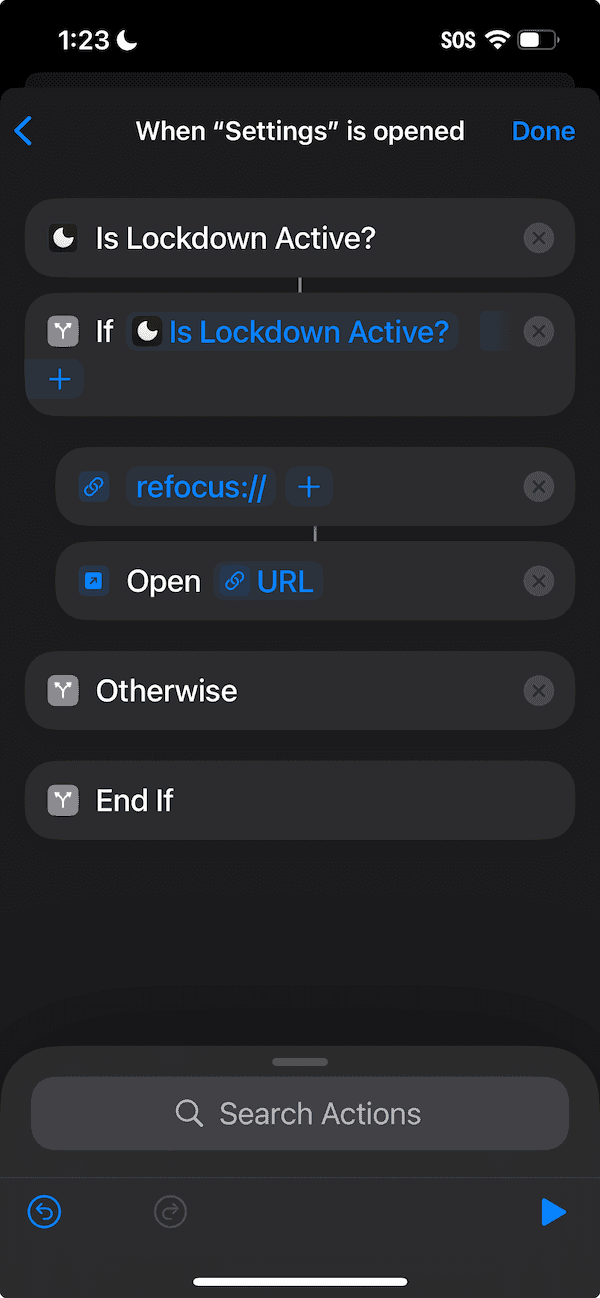
Instead of “Open App” you could utilize “Open URL”
Other Settings
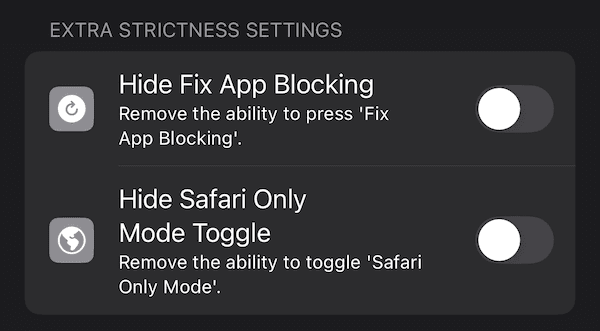
While Lockdown session is active, you can also go to Refocus “Settings” > “Advanced Settings” and change more settings like in the screenshot below:
Alternatives: Is Blocking Settings The Only Solution?
Except for tip #3 which allows to not block all of Settings app, The only other convenient option is to use the default Apple Screen Time with the passcode option. Refocus will always try to provide the best tooling available. The current state is due to what Apple allows to do on your iPhone (/iPad).
Technically, you could use advanced options like Apple’s Mobile Device Management (MDM), which places your iPhone into a special supervised mode. This method is typically used by large companies to control employee devices. However, MDM setup is complex and doesn’t offer the simple, user-friendly experience Refocus provides.
If you want to use Apple products, this is the best we have for controlling phone use. That, then, is Refocus mantra: to provide you the best product with what is possible.