Explore Refocus Features
See also Refocus Help & FAQ
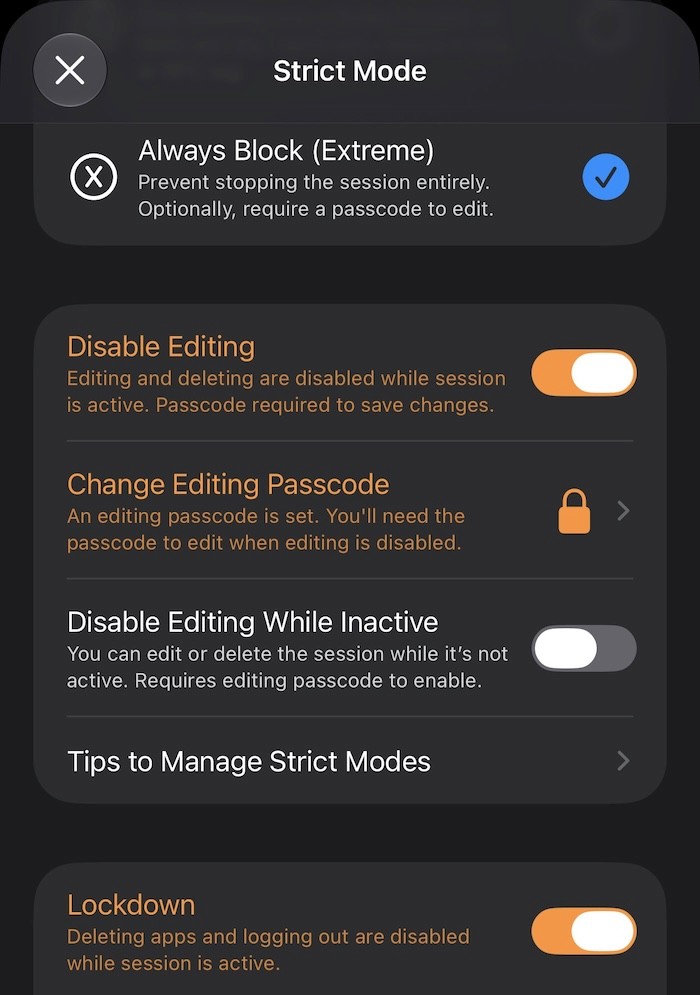
Prevent Unblocking With a Passcode
Use the “Unblock Limit” or “Always Block” strict mode with “Set Editing Passcode” to prevent changes without a passcode. Learn more
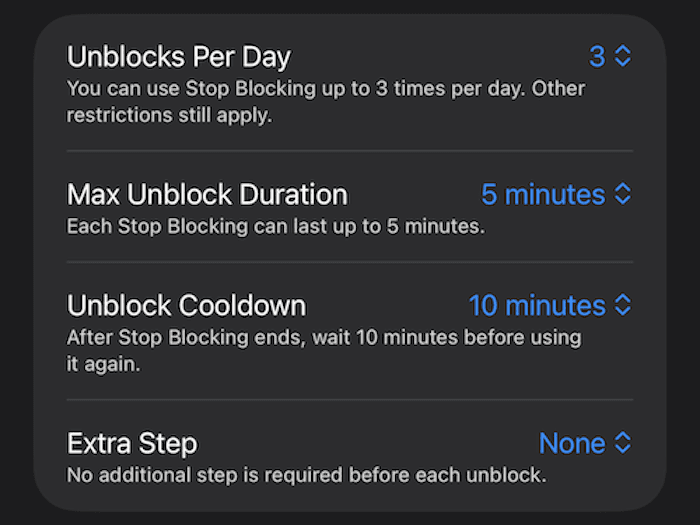
Limit How Many Times You Can Unblock
Use the “Unblock Limit” strict mode to set how many times you can unblock each day.
Run More Than 15 Blocking Sessions at Once
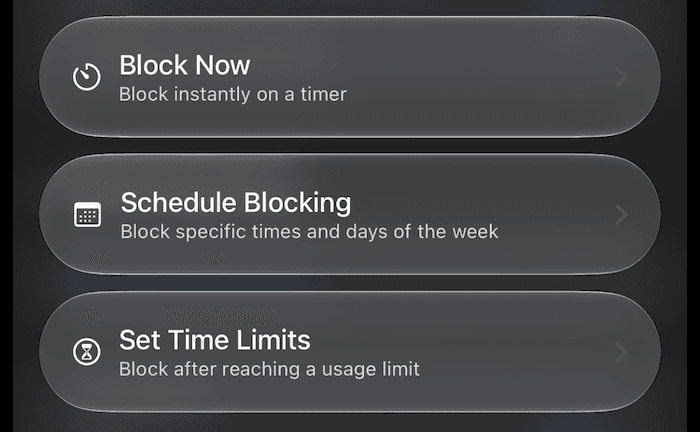
Refocus lets you run multiple overlapping blocking sessions:
“Block Now” blocks apps immediately for a set duration - for example, 30 minutes while you focus on a task.
“Schedule Blocking” automatically blocks apps on selected days and times - for example, Monday through Friday from 9:00 AM - 5:00 PM. Schedule ideas include:
Morning (5:00 AM - 9:00 AM) - make it easier to get out of bed.
Work (9:00 AM - 5:00 PM, Monday through Friday) - improve focus during work.
Bedtime (9:00 PM - 4:00 AM) - help you transition to bedtime.
“Set Time Limits” automatically blocks selected apps after a specified amount of use - for example, after 15 minutes.
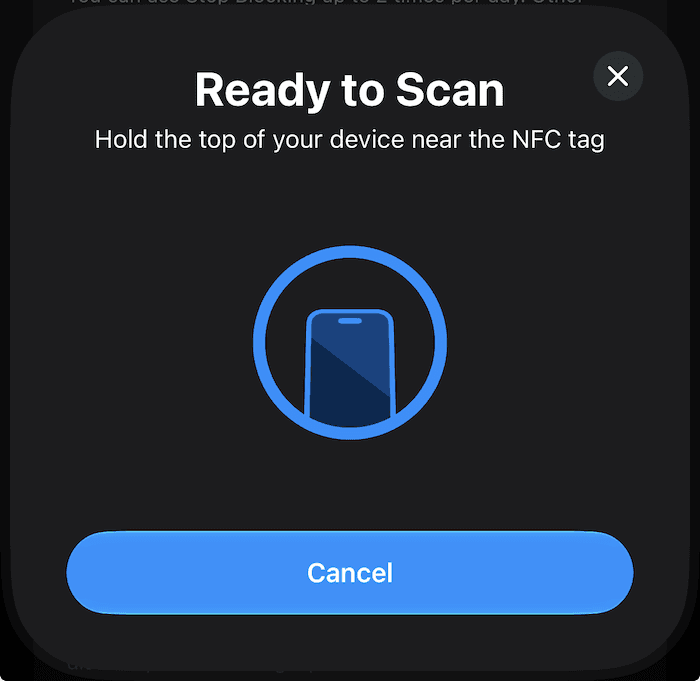
Scan an NFC Tag to Unblock
The “Unblock Limit” strict mode can require you to scan an NFC tag before unblocking. This turns a physical NFC tag into a key for ending a blocking session. Learn more
Set Up a Pomodoro Timer
Use the “Unblock Limit” strict mode to create Pomodoro-style focus intervals by combining an unblock cooldown with a maximum unblock duration.
For example, to alternate between 25 minutes of focused work and a 5-minute break:
Create a 3-hour “Block Now” session using “Unblock Limit.”
Set “Unblocks Allowed (per day)” to 6 - this allows up to six breaks during the session.
Set “Max Unblock Duration” to 5 minutes - this limits each break to five minutes.
Set “Unblock Cooldown” to 25 minutes - this requires 25 minutes of focus before the next break.
Require a Short Break Before Unblocking
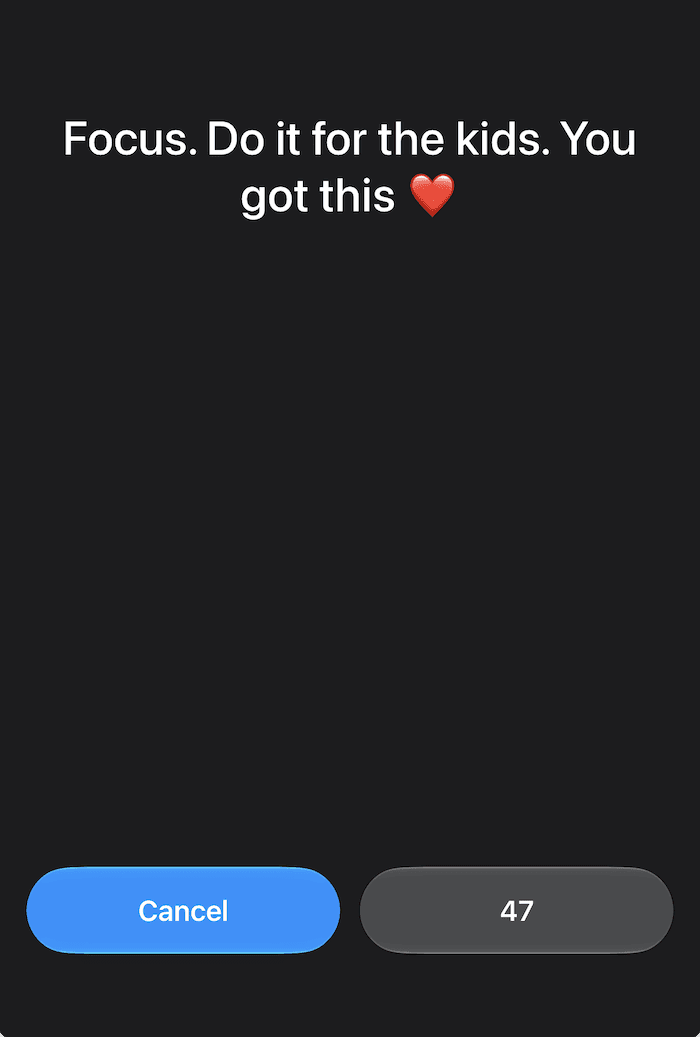
Use the “Interruptions” strict mode with the “Duration” option to add a countdown before every attempt to stop blocking. When you press “Stop Blocking,” the countdown screen below appears. You can unblock only after the countdown ends.
Require Copying Text Before Unblocking
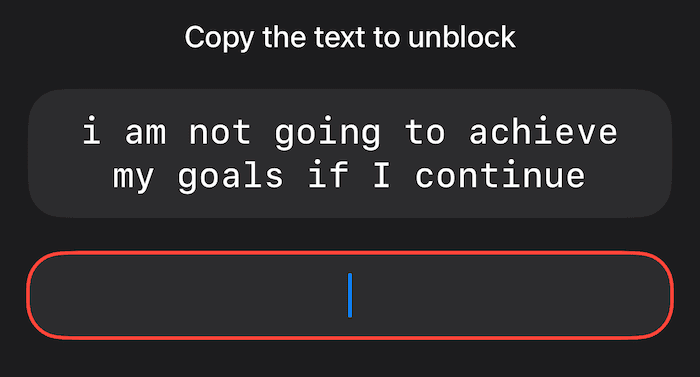
Use the “Interruptions” strict mode with the “Copy Text” option to add a copying challenge before every attempt to stop blocking. When you press “Stop Blocking,” the challenge screen below appears. You can unblock only after copying the text correctly.
Block Apps Based on Your Location
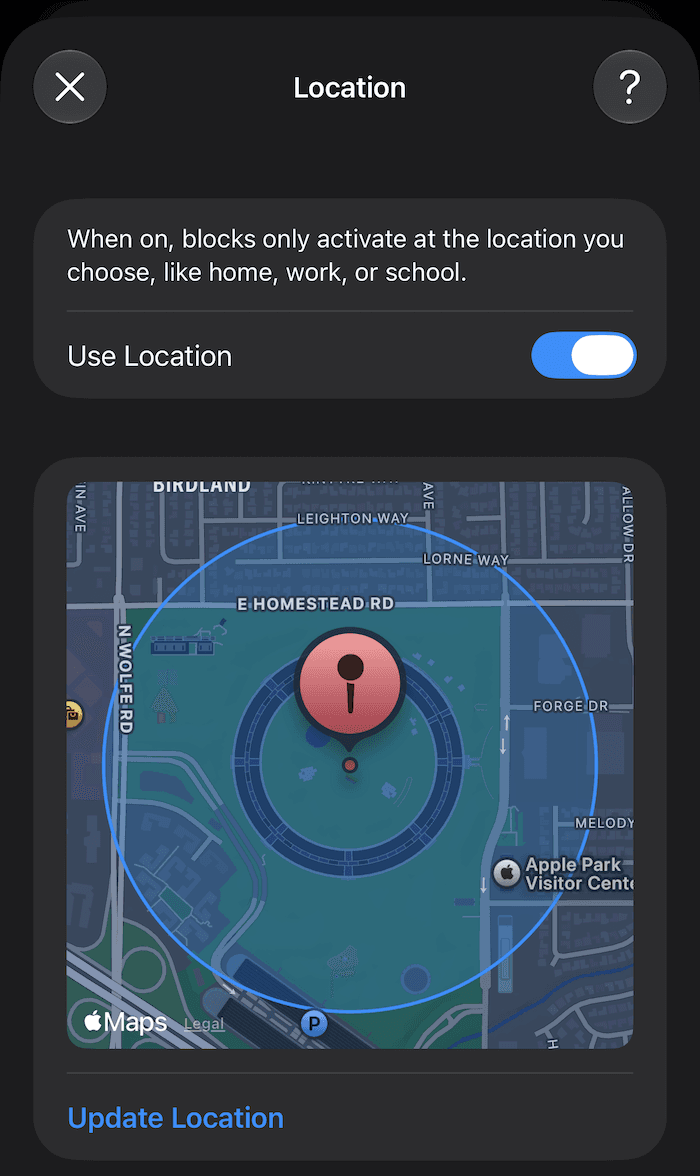
Location-based blocking activates a blocking session only when you’re at a selected location, such as home, work, or school. You can configure it in “Schedule Blocking,” next to Strict Modes.
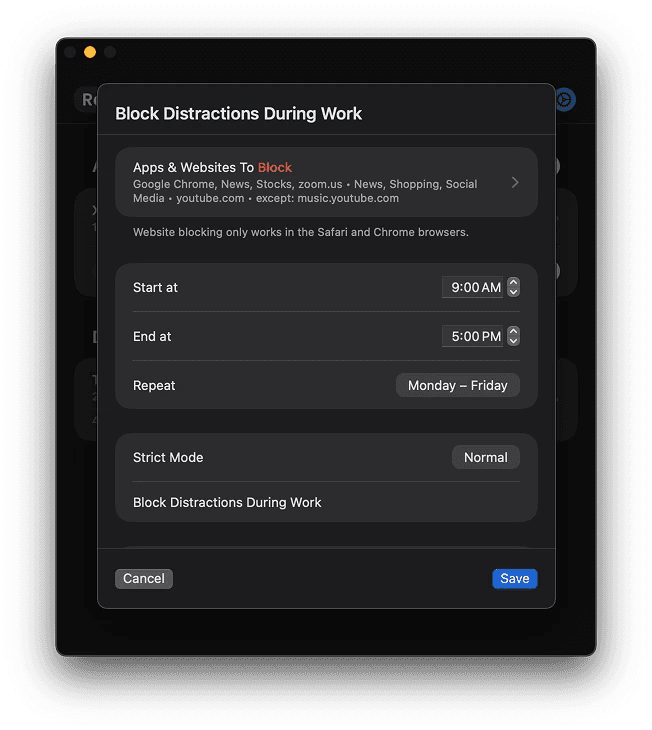
Mac App (Beta)
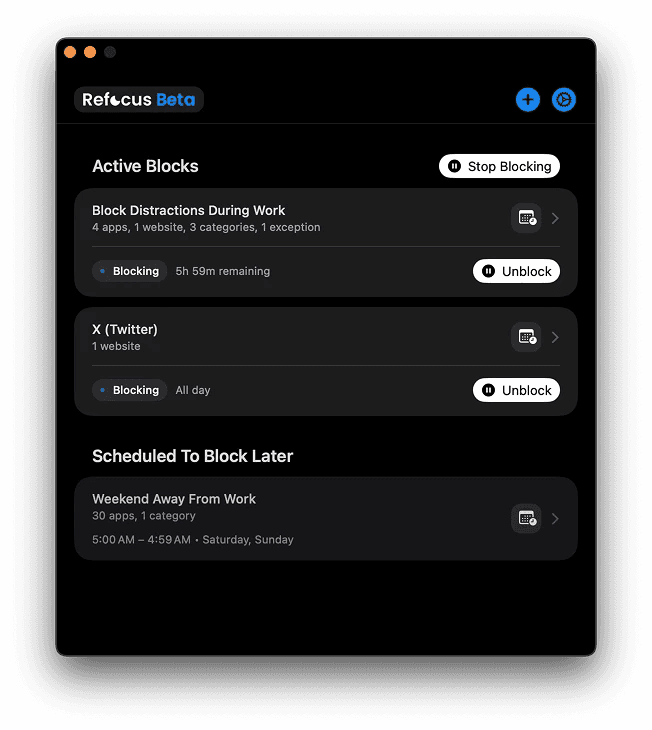
Refocus for Mac is available now!
Hide YouTube Shorts and Instagram Reels in Safari
Open Refocus Settings → Customize Safari to hide distracting parts of YouTube and Instagram while keeping the rest of each website available:
YouTube: Hide Shorts.
Instagram: Hide feed posts, Explore recommendations, and the Reels tab.
For example, you can use Instagram for messages without getting pulled into your feed. Learn more
Requires iOS 26.2 or later.
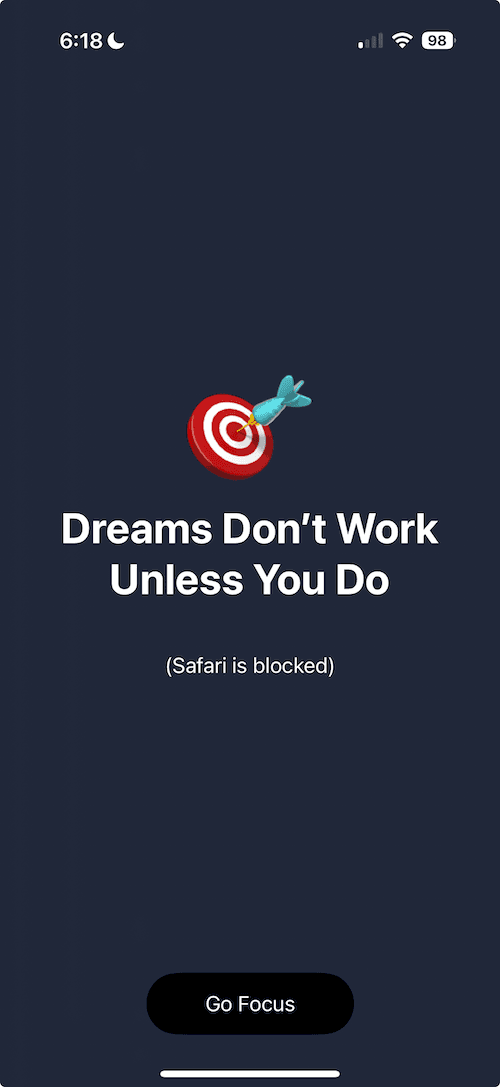
Customize Your Block Screens
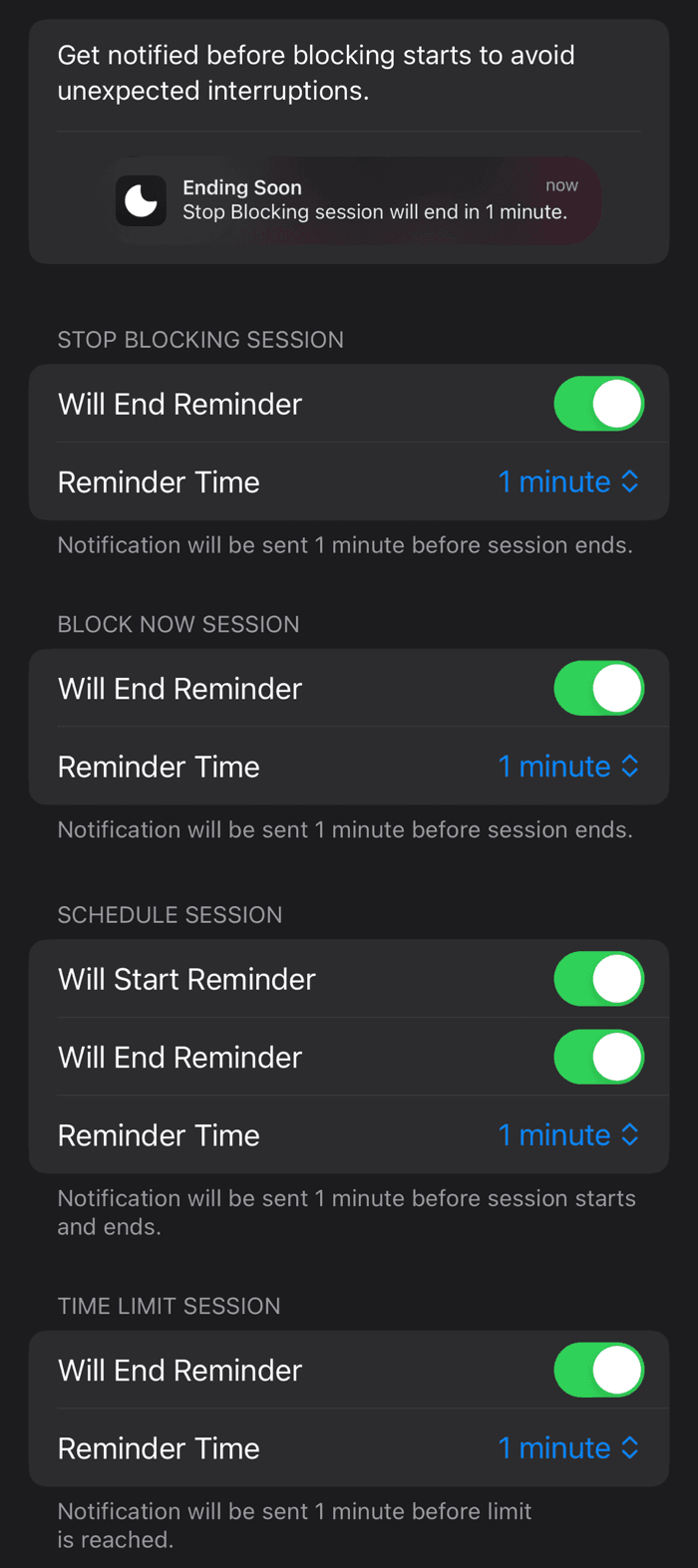
Get Notified When Blocking Starts
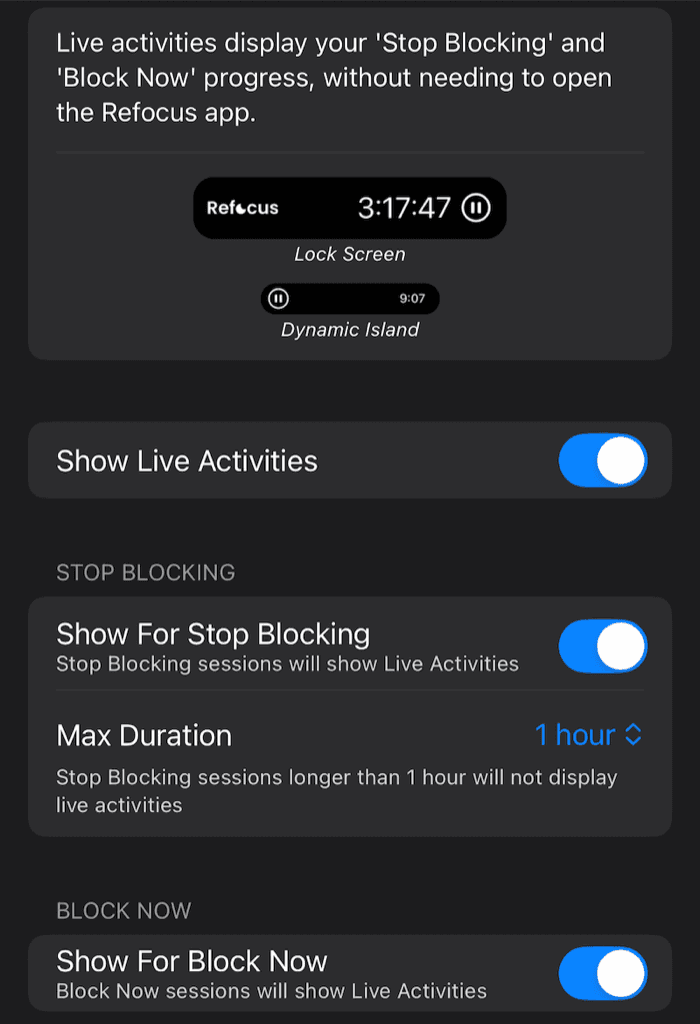
Use Live Activities
Exclude Apps From Screen Time
Don’t want productive apps such as Books to count toward your screen time? Open the “Report” tab, press the time button in the top-right corner, and select the apps you want to exclude.
Save Session Templates
Save frequently used “Block Now” setups as templates - for example, a 30-minute reading session or a 1-hour study session. Refocus saves the selected apps and websites, time settings, and strict modes for reuse. When creating or editing a blocking session, press the “…” button in the top-right corner to save it as a template and quickly recreate it later.