Notifications
Refocus supports notifications so you can get reminders before blocking starts or ends.
Steps for Best Experience
Ensure notifications are on in Refocus:
Open Refocus app > go to “Settings” > “Notifications” > ensure the right settings are on > press “Save”
Ensure notifications are on Apple Settings:
Open “Settings” app > “Apps” > “Refocus” > “Notifications” > turn everything on.
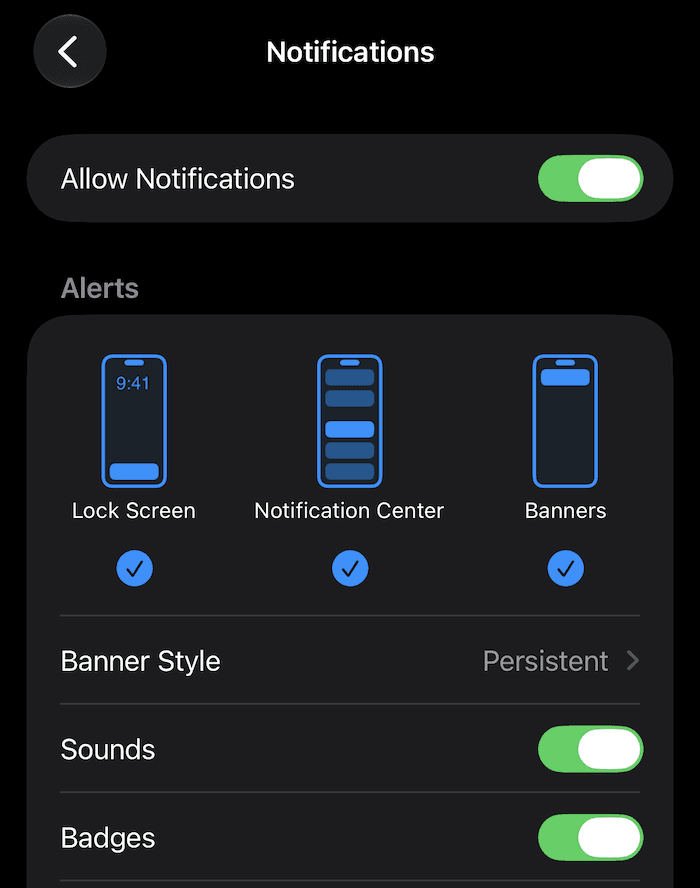
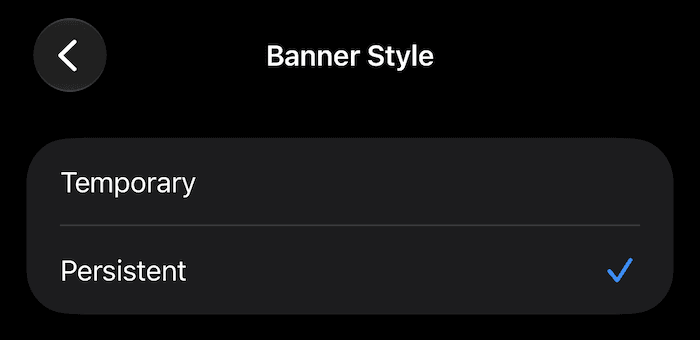
Turn on “Persistent” banner style. This will ensure you are less likely to miss the notification.
Open “Settings” app > “Apps” > “Refocus” > “Notifications” > “Banner Style” > “Persistent”
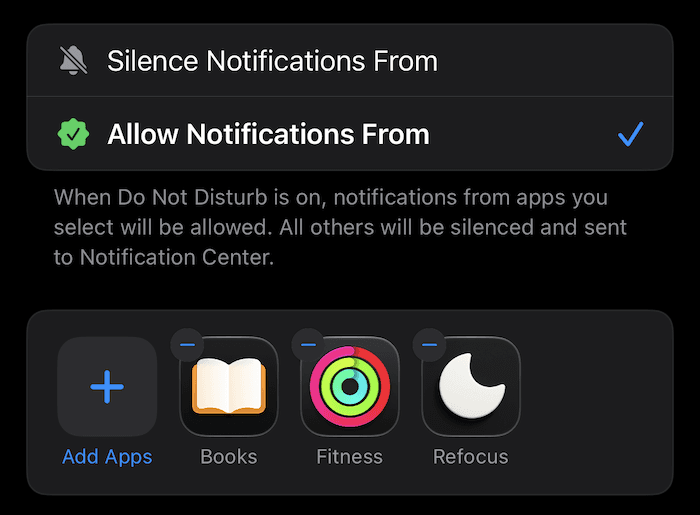
Allow notifications even when Focus modes are on. Without this, you will likely not see them.
Open “Settings” app > “Focus” > “Do Not Disturb” > “Apps” > “Allow Notifications From” > “Add Apps” > select “Refocus”
Repeat this for any other focus modes you use other than “Do Not Disturb.”
FAQ
Why am I not seeing notifications?
See the “Steps for Best Experience” tips above. Depending on your iOS settings, there’s a real chance you may not be seeing notifications - especially if you are on a focus mode like “Do Not Disturb.”
Why do notification sometimes automatically disappear?
To avoid notifications piling up, Refocus may automatically remove them:
Opening Refocus automatically clears notifications.
Some notifications auto-clear after they’ve served their purpose. For example, if you get a “Time Limit has 5 minutes left” notification, then once the Time Limit has started blocking the notification will automatically clear because the warning is no longer useful (the Time Limit is already blocking and there are no minutes left).