How To Block Websites
There are two ways to block websites using Refocus:
Using the “App & Website Picker”
Using the “Additional Websites” feature
Block Websites Using App & Website Picker (recommended)
Important: if you recently started using Refocus, the websites might not immediately appear in the picker. Please visit the website in Safari, and then wait 5 minutes for it to appear.
Important: if you use a third-party browser like Chrome, you must ensure that “Safari Only Mode” is disabled.
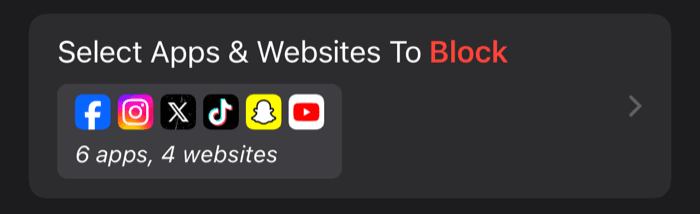
Press “Select Apps & Websites To Block”
Press “Search”
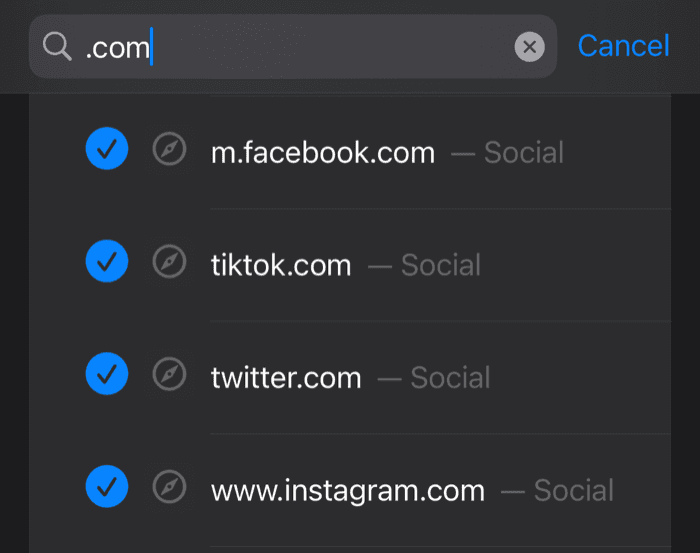
Type in the website URL
Close & save the session
In addition to the above:
It’s recommended to use Safari (for immediate blocking)
Enable Safari Only Mode (if using Safari)
Block Websites Using Additional Websites
⚠️ iOS 26 UPDATE ⚠️: on third-party browsers like Chrome, if one utilizes the “Additional Websites” feature, the blocking sometimes may need a browser restart to happen. Refocus is investigating and reporting the issue to Apple.
Important: if you use Safari on iOS 16, 17 and 18 (no longer true for iOS 26+), using “Additional Websites” will disable some features like Private Browsing Mode, or clearing recent browsing history. It also works worse than blocking websites with the “App & Website Picker” when using Safari.
Press “Select Apps & Websites To Block”
Select “Additional Websites”

Important: “Additional Websites” are not supported for App Limit sessions because of Apple Screen Time technology limitations.
Press “Add New Website,” or select from the available websites.
Close & save the session.
If You Use Safari… (recommended)
Safari, and using the ‘app & website picker’, is the recommended way to block websites because it doesn’t require ‘page reloads’ to block.
Enable Safari Only Mode.
On iOS 16, 17 and 18 (no longer true in iOS 26+), using “Additional Website” feature will disable features like Private Browsing Mode or clearing recent browsing history.
Website screen time is not tracked while in private browsing mode (time spent in Safari app still is). This is an Apple Screen Time technology limitation.
If You Use A Third-Party Browser (like Chrome)…
Websites may not be immediately blocked on third-party browsers (vs. Safari) because blocking only activates on ‘page reloads.’
Disable Safari Only Mode.
“App Limit” sessions do not track website time spent in third-party browsers. This is an Apple Screen Time technology limitation.
Website screen time is not tracked in third-party browsers (time spent in the app [ex. Chrome] still is). This is an Apple Screen Time technology limitation.
Don’t See Websites In App & Website Picker?
If you recently started using Refocus (or recently gave Refocus Screen Time permissions), the websites might not immediately appear in the picker.
Please visit the website in Safari, and then wait 5 minutes for it to appear. This is a limitation of Apple’s Screen Time technology. The good news is that websites will automatically be there if you use Safari and are a long-time Refocus user!
If (1) does not work, another issue could be that you have so many websites that new ones don’t appear. Please clear websites (see the “How To Clear Websites? section below), and then do step (1) again.
How To Clear Websites?
First series of steps:
Open Apple “Settings” app
Select “Apps”
Select “Safari”
Select “Clear History and Website Data”
Confirm
Then perform the following to finalize:
Open Apple “Settings” app
Select “Screen Time”
In the “Apps With Screen Time Access” section, turn off permission to all third-party apps (including Refocus)
Go back and use Refocus (it will ask to enable permissions again)