Time Limit Issues
If you are experiencing issues, like Time Limits blocking early, please consider these steps:
🚨 IMPORTANT: Turn off “Share Across Devices” in Apple Settings (directions below) 🚨
Use “Fix App Blocking” to “refresh” the time limit (open Refocus Settings > Advanced Settings > press “Fix App Blocking”).
Note that after using “Fix App Blocking” the limits may take time to activate OR you may have to open the app and use it for the limit to activate.
“Time Limits” can be delayed in activation (+/- a minute). If they never activate, even after waiting a minute, press “Fix App Blocking” as described above.
“Time Limits” for websites only work with Safari.
Note that if you select multiple apps (or websites), all selected apps will be blocked when their total time reaches the limit.
For example, if you select “Instagram” and “YouTube” with a 5 minute limit, and spend 5 minutes on “YouTube” (and 0 minutes in “Instagram”), both “YouTube” and “Instagram” will be blocked.
🚨 Do not use multiple Screen Time apps 🚨 Unfortunately, this can cause all sorts of bugs.
Update iOS version (Refocus depends on Apple Screen Time technology which updates over time).
🚨 iOS 26.2, 26.3, 26.4 🚨 iOS 26.2, 26.3 and 26.4 in particular, has an issue where all limits can activate as soon as you open your phone. These issues can be mitigated by pressing the “Fix App Blocking” button. Learn more
✅ Update to iOS 26.5 to fix this issue.
Update Refocus app version. Recommended version is at least
2.1.12.⚠️ Read about how Screen Time calculation works with Refocus.
In some rare cases, the Time Limit feature will not work as expected. The feature depends on Apple Screen Time technology which sometimes behaves in unexpected ways. Refocus is always actively reporting feedback to Apple to improve the feature. To increase the chance time limits work correctly:
Instead of selecting multiple apps, try to set a Time Limit for a single app. Refocus supports 15+ blocking sessions, so you can create a separate time limit for multiple apps.
Instead of using “Time Limit” feature, you can use the “Unblock Limit” strict mode with “Schedules” which allows you to set daily limits without the reliance on Apple Screen Time (for example, to set a 1 hour limit: choose 4 unblocks per day, with a max unblock duration of 15 minutes).
How To Disable “Share Across Devices” in Settings
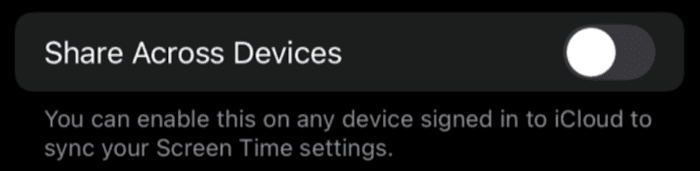
In Screen Time settings, we recommend you turn off “Share Across Devices:”
Open Apple “Settings” app
Press “Screen Time”
Scroll to bottom
Turn “Share Across Devices” OFF
Repeat the steps across ALL your Apple devices (under the same Apple Account)
The effect will take the next day
If this setting is enabled, the time limit may activate early because it will count time spent across all devices.
Ignore this step if you don't have other Apple devices (iPad or Mac).
Why Are Time Limit Issues Happening?
Refocus is built on top of Apple's Screen Time technology. It does not work without it. Unfortunately, this technology may sometimes have problems and may behave in unexpected ways. Learn more
If you follow all the advice above, you should rarely experience issues. If you do experience Time Limit problems, you should be able to resolve it with a single press of the “Fix App Blocking” button.
Still Experiencing Issues?
If you carefully tried all of the above, and are still experiencing issues, please collect the information below and use the “Contact Us” button inside the app to email it. You will then get a tailored answer specific to your situation.
For context, Refocus can't see much of what is going on your device. Data like what apps you selected, or your screen time, is hidden. As a result, to help you, it's important to be able to see what you see. There can be dozens of explanations for each issue. It can take as little as one minute to gather all of this.
Please provide the following information while the problem is happening (feel free to either take screenshots, or just do a screen recording in one go):
Show Refocus home screen (make sure it shows the blocking session that is causing issues)
Show the details of the problematic blocking session (in Refocus, press on the blocking session to see its details like apps selected, times selected etc.)
Show the blocked app (make sure you have opened the app, not just the icon)
Show Apple Screen Time settings - particularly the "APPS WITH SCREEN TIME ACCESS" section and the "Share Across Devices" setting (open Apple "Settings" app > select "Screen Time")
Show the relevant screen time spent in Apple Screen Time Settings (open Apple "Settings" app > select "Screen Time" > select "See All App & Website Activity")
Show blocking session usage (open Refocus > press "Usage" on the blocking session from "Home" tab)
Show the relevant screen time spent in Refocus (open Refocus > select "Report" tab)