Refocus Mac Help & FAQ
Common Mac questions
How To Block Websites?
Create a blocking session with at least one website blocked. Make sure the blocking session is active.
Open Safari, Chrome or another browser (see browser support).
Visit the blocked website.
Wait a little bit and you should be presented a permission dialogue (some browsers, like Firefox, work differently):
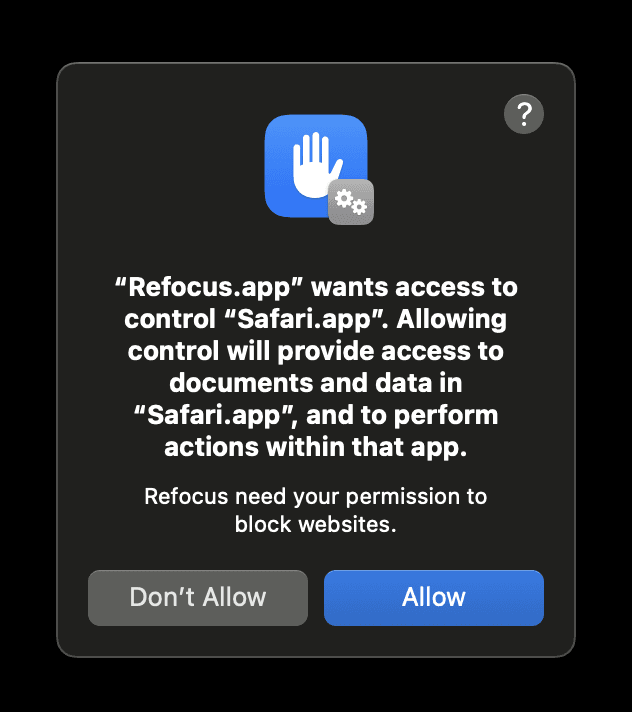
If you pressed “Don’t Allow” accidentally as part of step (4), then:
Open “System Settings” in macOS
Select “Privacy & Security”
Select “Automation”
Select “Refocus”
Enable permissions for your browser
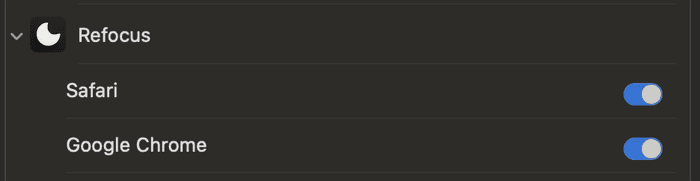
The websites should be blocked where every time you visit a website, the website will be redirected to a block screen.
If not, you can also go to Refocus Settings (the gear-icon on top-right corner), and select “Refresh Blocking.”
How To Block Apps?
Create a blocking session with at least app blocked. Make sure the blocking session is active.
As part of selecting apps to block, you need to select the actual application file (
.app).
The app should automatically be blocked when you open it where it will automatically hide back into the macOS dock.