Resolving Screen Time Problems Checklist
Try 1: Fix the Problem Using Refocus
If you still have Refocus installed, first try to fix the problem using Refocus.
In Refocus, go to Settings → Advanced Settings. Tap Fix App Blocking. Wait until it completes and keep the app open.
If step 1 does not fix the issue, go to the Refocus Home tab and delete all the sessions.
If step 2 does not fix the issue, repeat step 1.
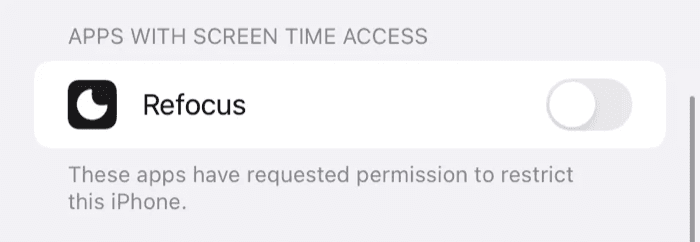
If step 3 does not fix the issue, open the iOS Settings app, tap Screen Time, and turn off Refocus under Apps With Screen Time Access.
If step 4 does not fix the issue, restart the device.
If step 5 does not fix the issue, delete Refocus.
If step 6 does not fix the issue, try restarting the device again.
If step 7 does not fix the issue, move on to Try 2.
Try 2: Fix the Problem Using Apple’s Screen Time
You have now deleted Refocus and restarted the device, but the apps are still blocked. Something other than Refocus may be blocking them.
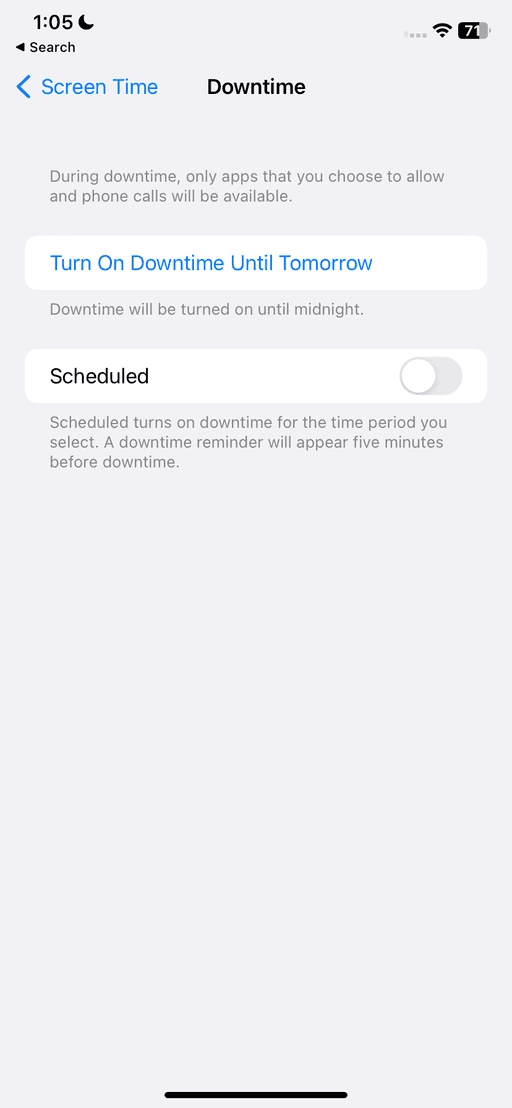
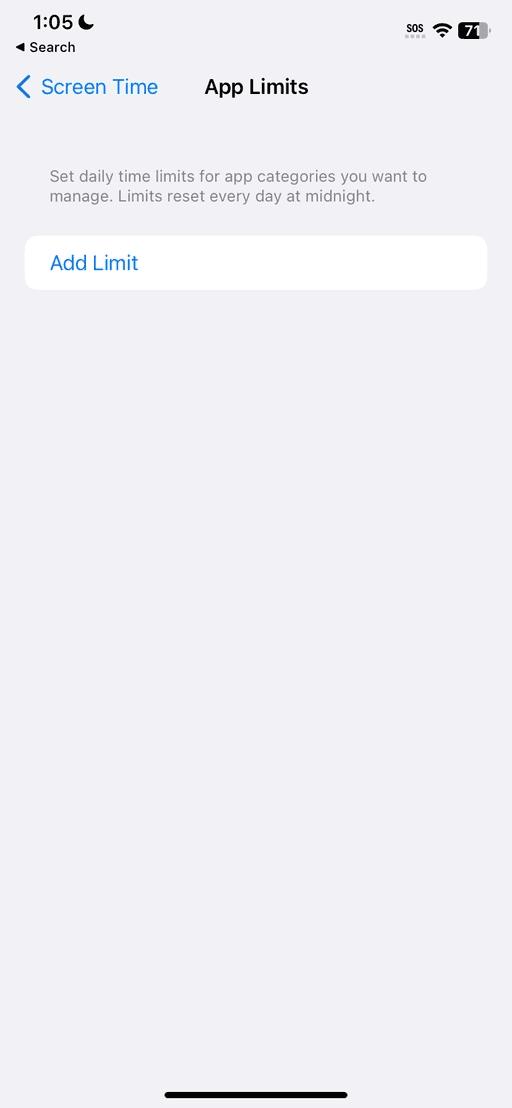
The screenshots below show an older iOS layout. Settings names vary by iOS version; newer labels are included in the steps.
In iOS, open Settings → Screen Time → Downtime and ensure no downtime is scheduled. On iOS 27 or later, open Screen Time Schedule and turn off Schedule instead.
If step 1 does not resolve the issue, open Settings → Screen Time → App Limits and ensure no app limit is set. On iOS 27 or later, open Time Allowances → Manage Categories, select a category, and delete it to turn off its allowance. Repeat for any other categories with allowances you want to turn off.
If step 2 does not resolve the issue, open Settings → Screen Time and look for Apps With Screen Time Access. If that section is present, ensure all apps listed there are turned off.
If step 3 does not resolve the issue, open Settings → Screen Time and tap Turn Off App & Website Activity. On iOS 27 or later, first tap Manage Screen Time. On older iOS versions, the option may be called Turn Off Screen Time.
If step 4 does not resolve the issue, restart the device again.
If step 5 does not resolve the issue, try to force restart the device.
For Apple’s current labels and instructions, see Apple’s Screen Time guide.
Try 3: Fix the Issue Using Refocus Again
At this point, you have deleted Refocus and turned off the Screen Time settings described above. You have tried restarting and force restarting the device. Now try downloading Refocus again to fix the problem.
Download Refocus and create a new blocking session that blocks only the apps you are having trouble unblocking. When you visit a blocked app, does it say Blocked by Refocus? Try pressing Stop Blocking and check whether the problem is resolved.
If step 1 does not help, repeat all the steps in Try 1: Fix the Problem Using Refocus. Instead of pressing Fix App Blocking only once, try it multiple times. Wait for each attempt to finish before starting the next one, and keep the app open throughout.
Try 4: Fix the Issue Through Other Means
In iOS, open Settings → General → Software Update and update your device if an update is available.
Try deleting the blocked app and reinstalling it from the App Store. Check whether the app is now unblocked.