How to Block an App From Being Downloaded on iPhone
Step-by-step guide on how to block certain apps from being downloaded on iPhone.
Can you block an app from being downloaded on iPhone? Yes!
To block a specific app from being downloaded, there are two options:
Option 1: Use the built-in Apple Screen Time feature
Option 2: Get an app designed to block apps from being downloaded
Now, there's a caveat: this will not just block one app from being downloaded. It will block ANY app from being downloaded. There is no way to block just one app from being downloaded on the iPhone.
Option 1: Apple Screen Time
Choose this option if you want to avoid getting another application. However, you lose powerful features and flexibility.
Steps to block apps from being downloaded on iPhone using Apple Screen Time:
Open Apple "Settings" app
Select "Screen Time"
Select "Content & Privacy Restrictions"
Select "iTunes & App Store Purchases"
Select "Installing Apps"
Select "Don't Allow"
Open Apple "Settings" App
Select "Screen Time"

Select "Content & Privacy Restrictions"
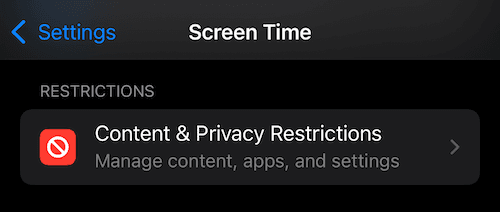
Select "iTunes & App Store Purchases"
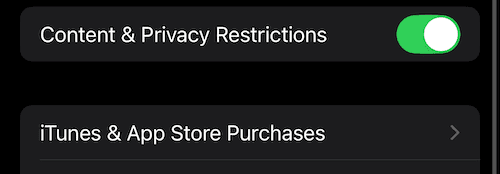
Select "Installing Apps"
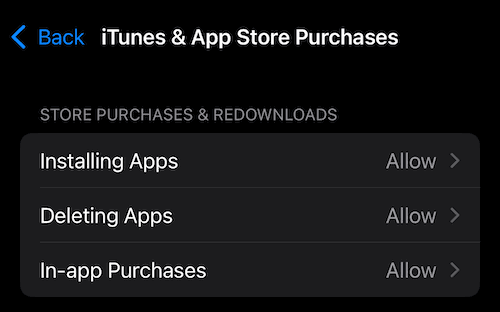
Select "Don't Allow"
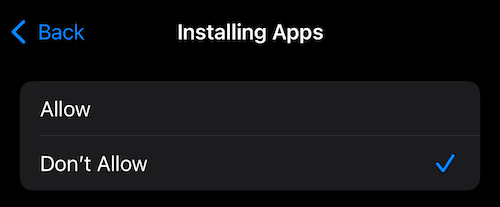
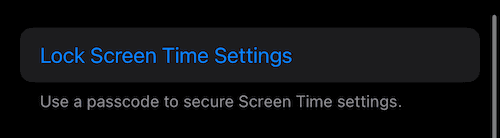
Optional: Lock The New Setting Behind a Passcode
To prevent someone from changing this setting, in Apple "Settings" app > "Screen Time" settings, scroll to the bottom and select "Lock Screen Time Settings."
Option 2: Get an App
The best option to block installing apps if you are willing to get an application. Apps allow you to schedule when to block downloading apps.
Steps to block apps from being downloaded on iPhone using an app:
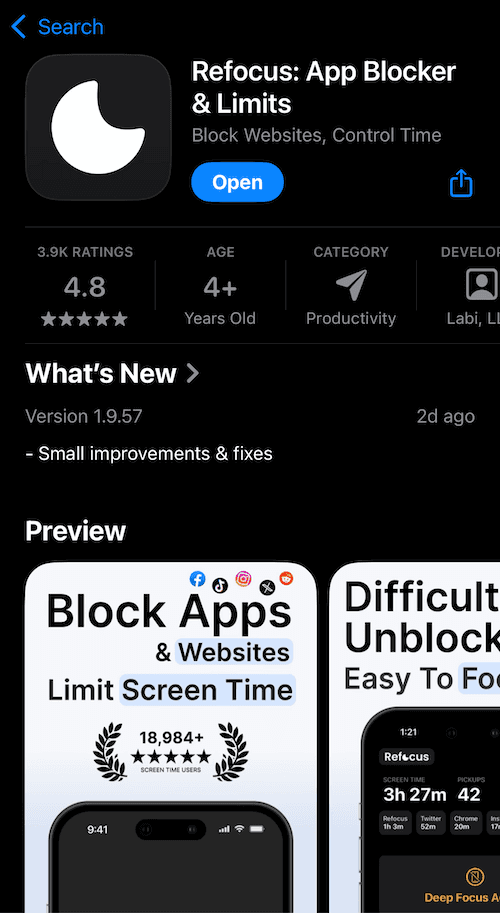
Search "Refocus" on App Store and get the app
Open the app
Complete the onboarding steps. The onboarding will show you how to block apps!
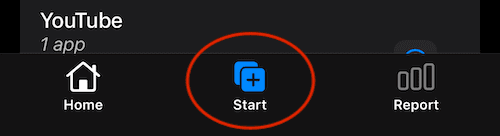
Select "Start" at the bottom
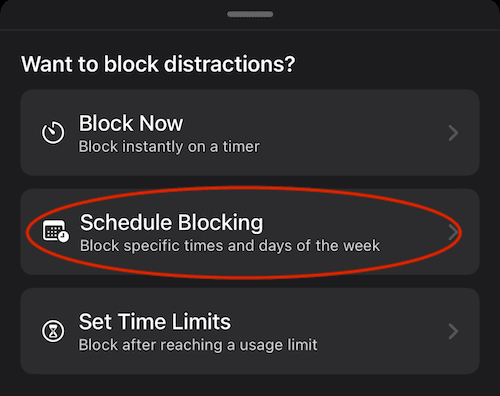
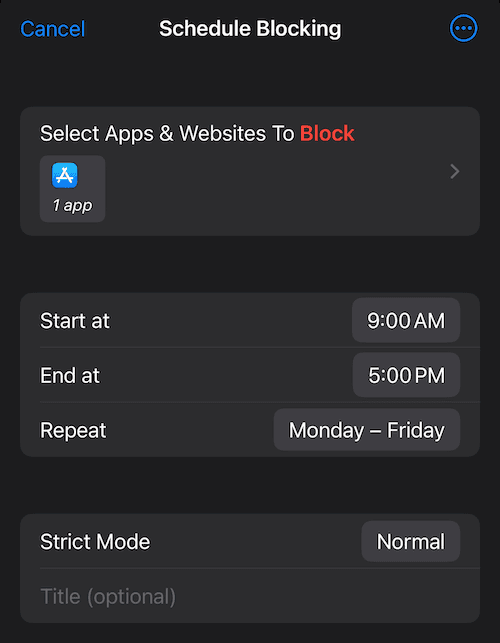
Select "Schedule Blocking"
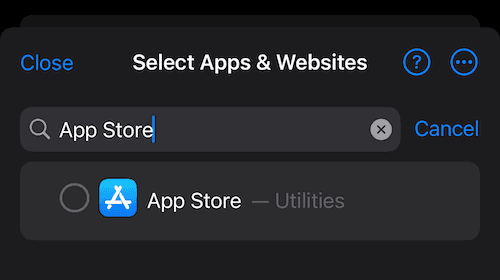
Select to block "App Store"
Select "Strict Mode" (Normal)
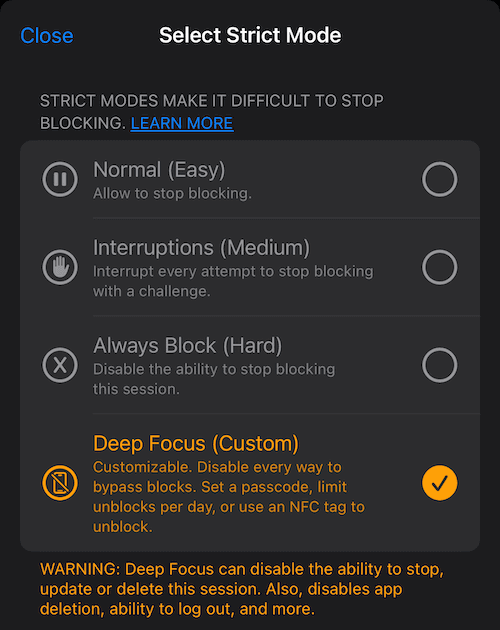
Select "Deep Focus" Strict Mode & Schedule Blocking
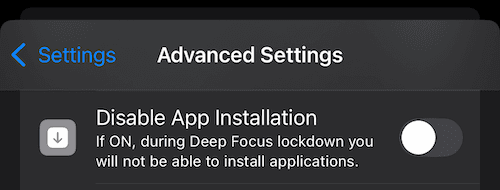
Optional: Go to Settings > Advanced Settings > Toggle "Disable App Installation"
Get the App
Select "Start" At The Bottom Of The Screen
Select "Schedule Blocking"
Select To Block "App Store"
Select "Strict Mode" ("Normal")
Select "Deep Focus" Strict Mode & Schedule Blocking
Optional: Go To Refocus Settings > Advanced Settings > Toggle "Disable App Installation"
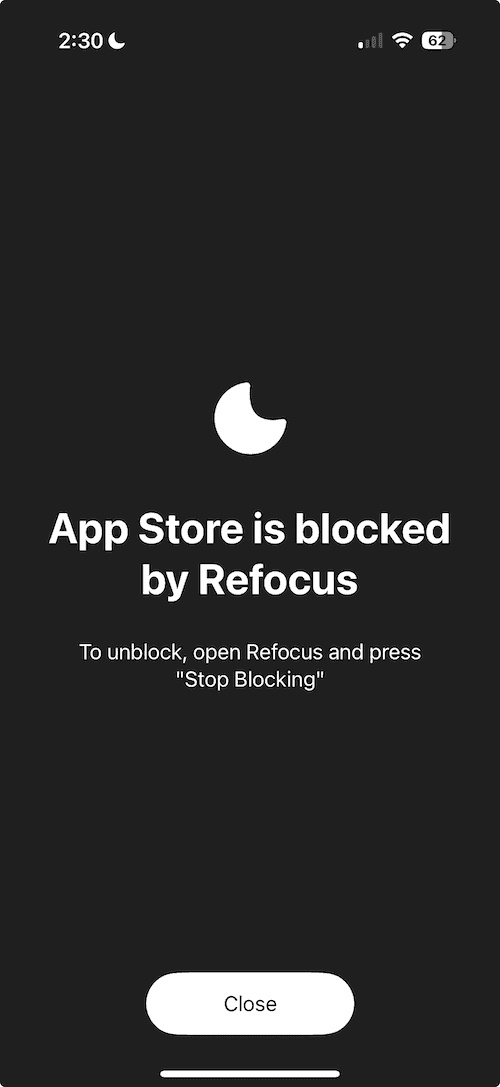
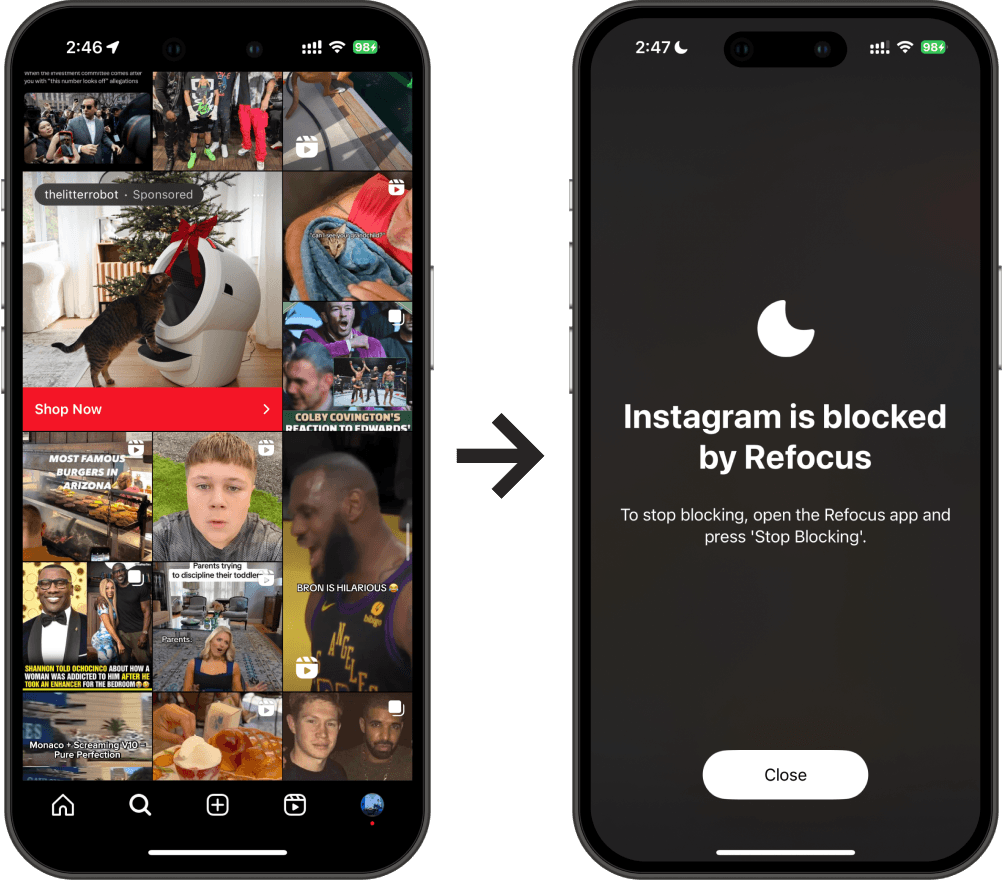
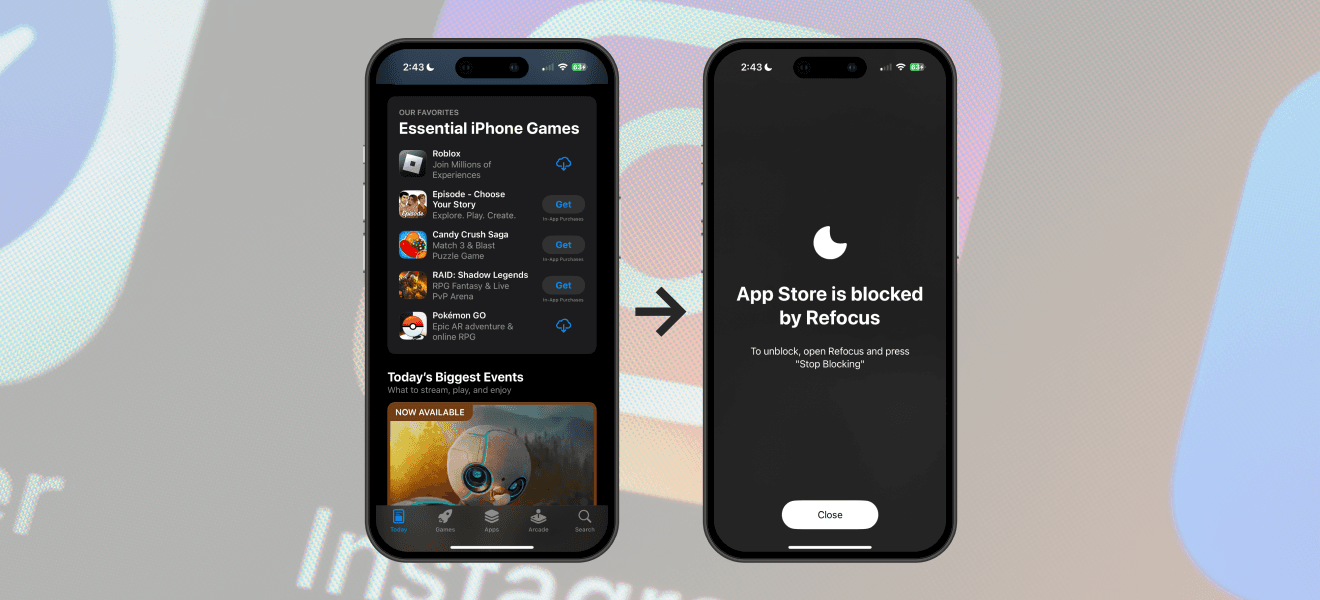
View The Blocked App Store