How to Block Apps on iPhone
A step-by-step guide to block apps on iPhone using Apple Screen Time or a dedicated blocking app.

There are two ways to block apps on iPhone:
Option 1: Use the built-in Apple Screen Time feature
Option 2: Get an app designed to block apps
Option 1: Apple Screen Time
Choose this option if you want to avoid getting a new app. However, you lose powerful features and flexibility.
Steps to block apps on iPhone using Apple Screen Time:
Open Apple "Settings" app
Press "Screen Time"
Press "Downtime"
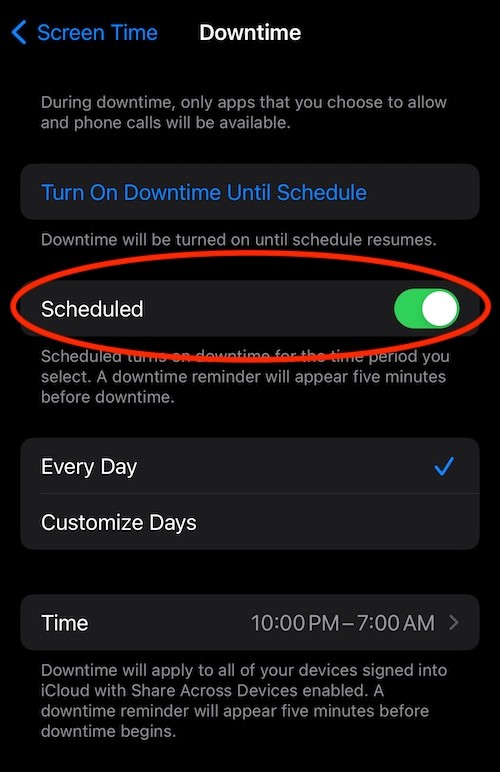
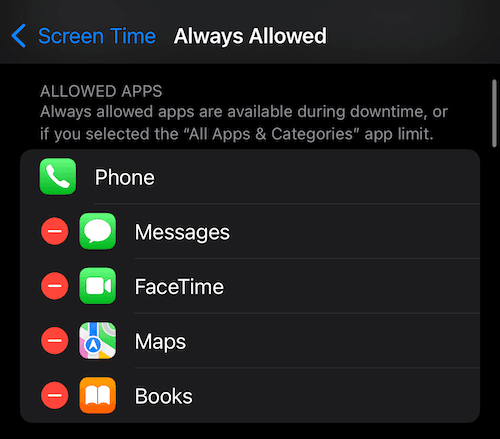
Turn on "Scheduled" - this will automatically block all apps at the selected schedule except the "Always Allowed" ones
Open "Settings" App
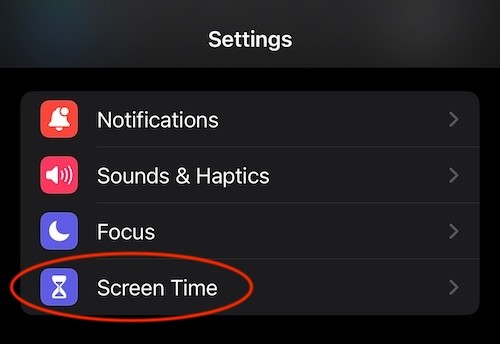
Press "Screen Time"
Press "Downtime"
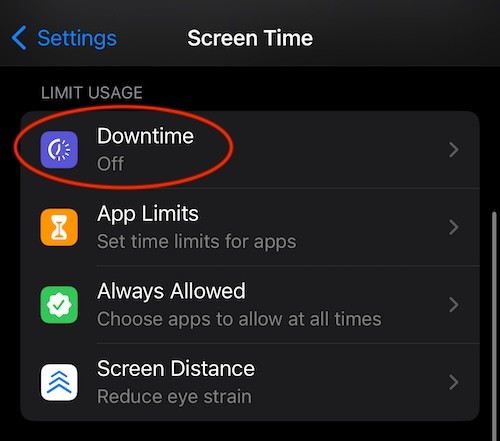
Toggle "Scheduled" (this will automatically block all apps)
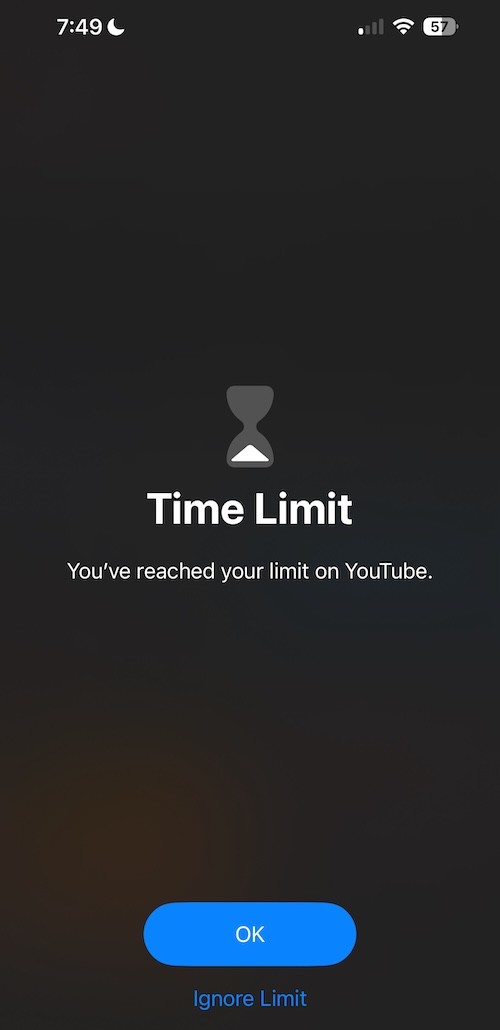
View The Blocked Apps
Use The "Always Allowed" Screen To Keep Important Apps Unblocked
Option 2: Use an App
The best option to block apps if you are willing to get an application.
Steps to block apps on iPhone using a dedicated blocking app:
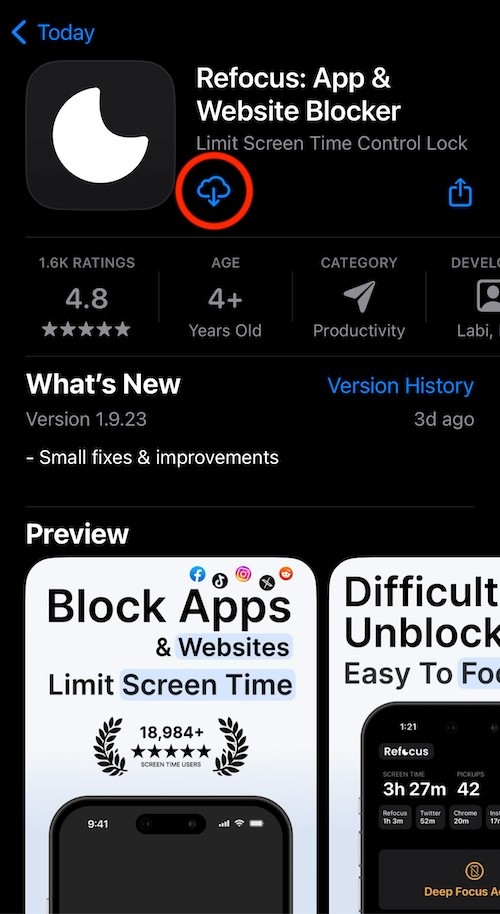
Search "Refocus" on App Store and get the app
Open the app
Complete the onboarding steps. The onboarding will show you how to block apps.
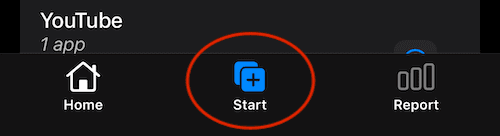
Select "Start" at the bottom
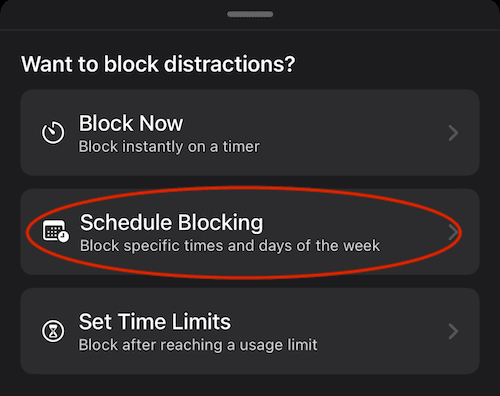
Select "Schedule Blocking"
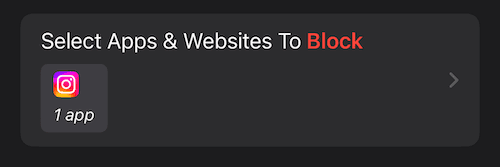
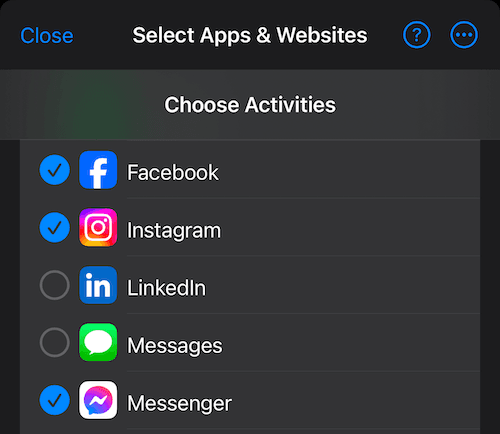
Select apps to block
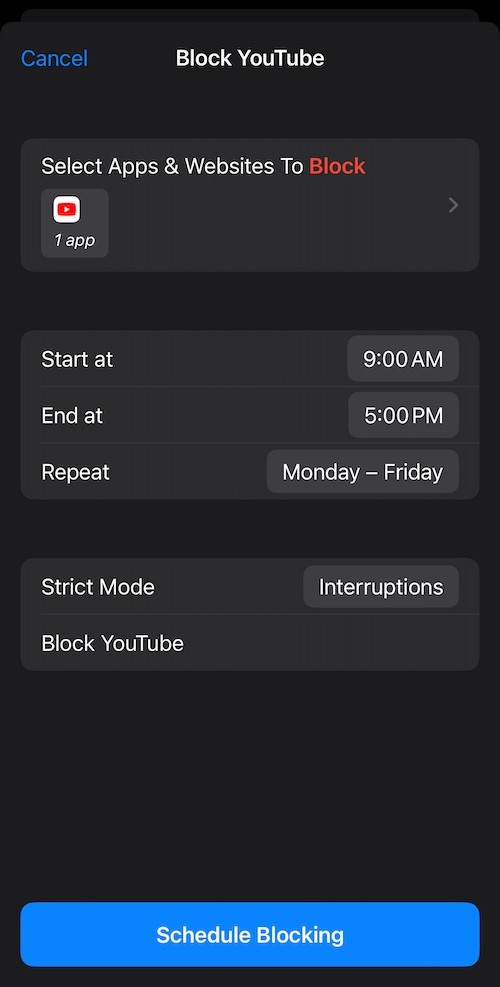
Pick the time of when to block
Press "Schedule Blocking"
Get the App
Select "Start" At The Bottom
Select "Schedule Blocking"
Press "Select Apps & Websites To Block"
Choose The Apps To Block
Select The Time & Schedule Blocking
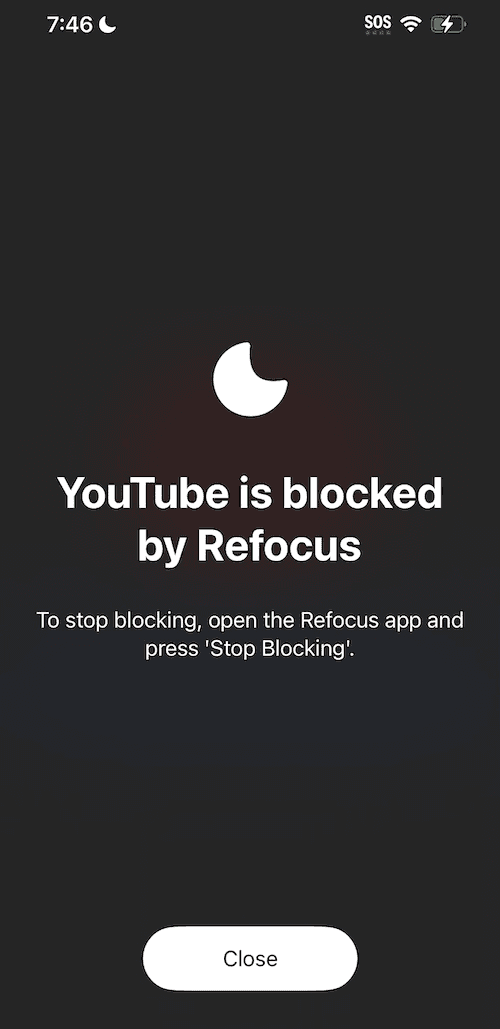
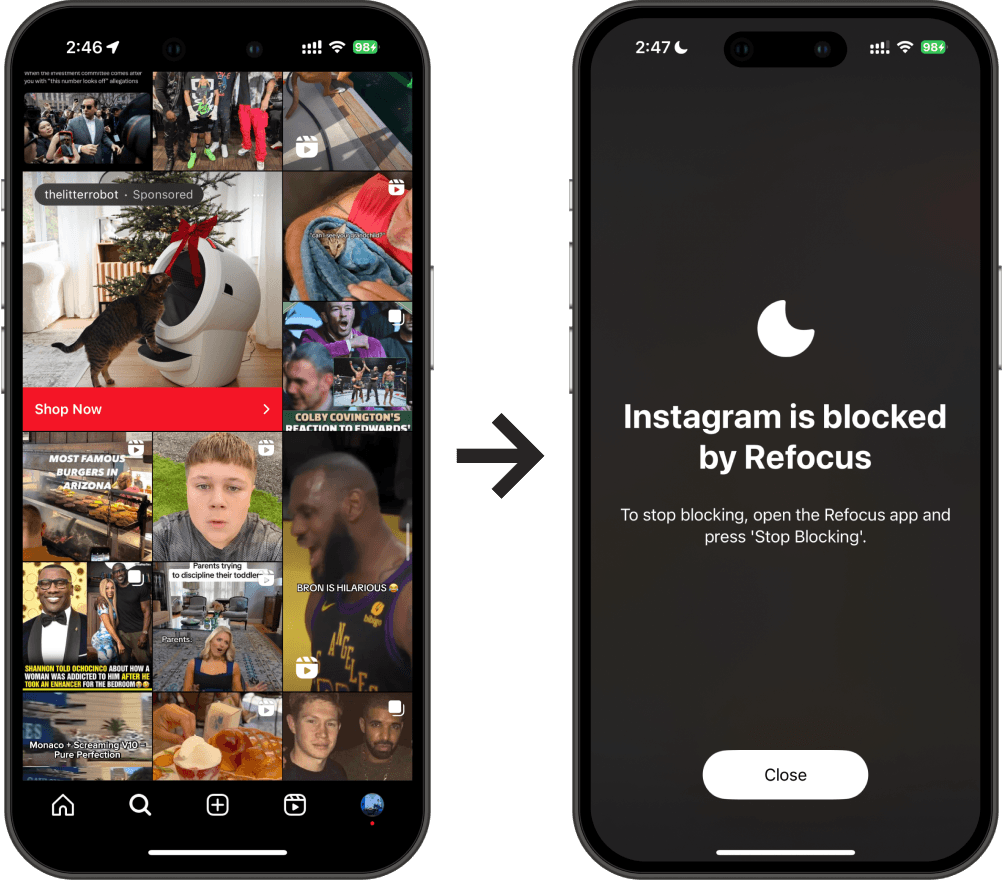
View The Blocked App