How To Lock Apps on iPhone
A step-by-step guide to lock apps on iPhone using built-in features and third-party apps.

There are two options to lock apps on iPhone:
Option 1: Built-in feature (introduced in iOS 18 and above)
Option 2: Install an app designed to lock apps
Option 1: Built-in By Apple on iOS 18
Choose this option if you have iOS 18 and want to avoid installing another application.
Steps to lock & hide apps on iPhone using built-in features:
Go to the Home Screen
Locate the app you want to lock
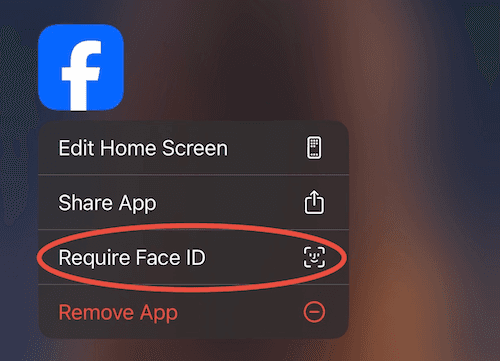
Touch and hold the app icon until the quick actions menu opens
Tap "Require Face ID"
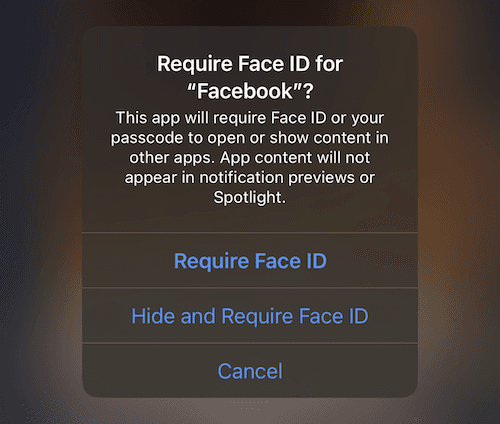
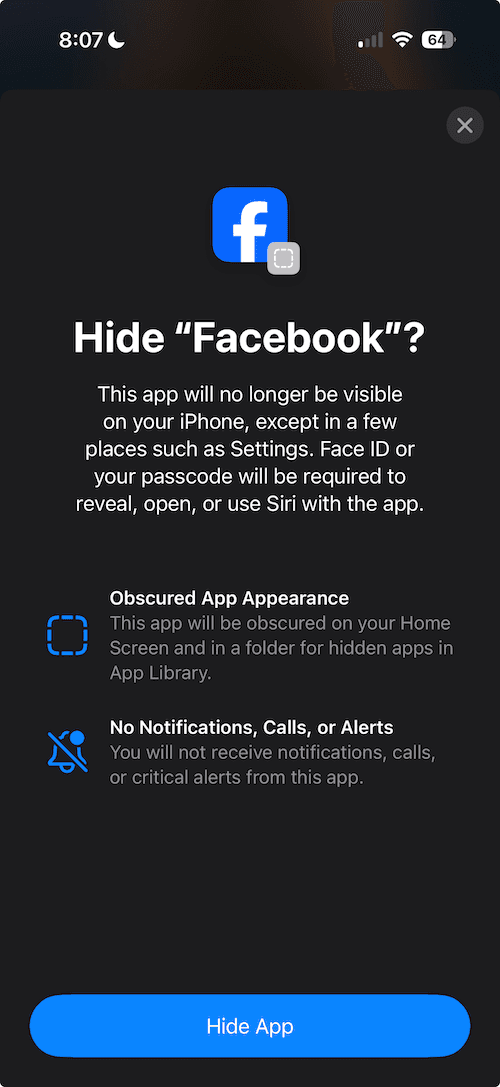
Choose between "Require Face ID" or "Hide and Require Face ID"
Touch And Hold The App On Home Screen, And Press "Require Face ID"
Choose Between "Require Face ID" or "Hide and Require Face ID"
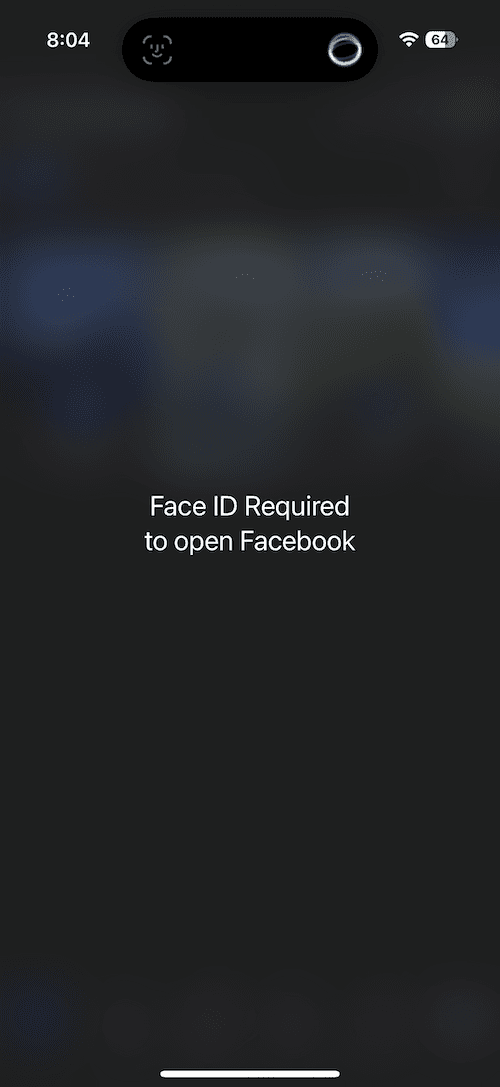
View The Locked App
The next time you open the app, you will have to authenticate with Face ID.
Explainer Of Hiding The App
Option 2: Third-Party Apps
The best option to lock apps if you are willing to install another application. Supports iOS 16 and above.
Steps to lock apps on iPhone using an app:
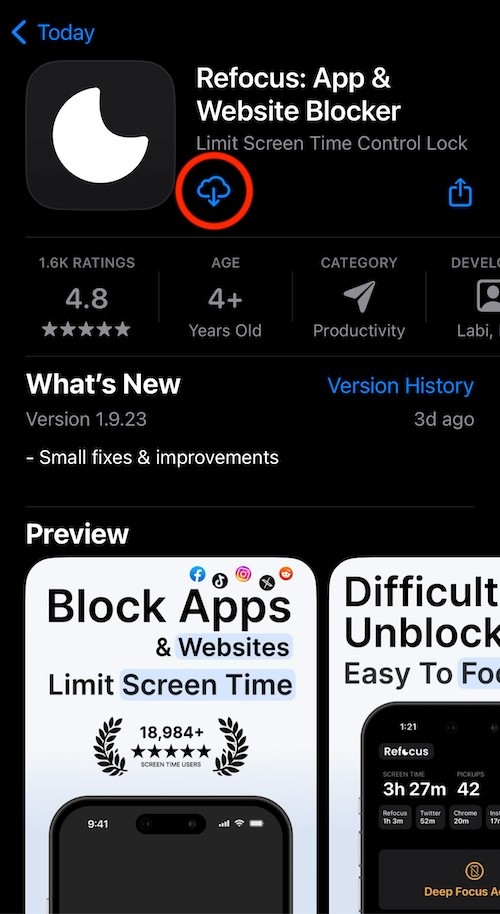
Search "Refocus" on App Store
Open the app
Complete the onboarding steps. The onboarding will show you how to lock apps!
Install the App
Open the App
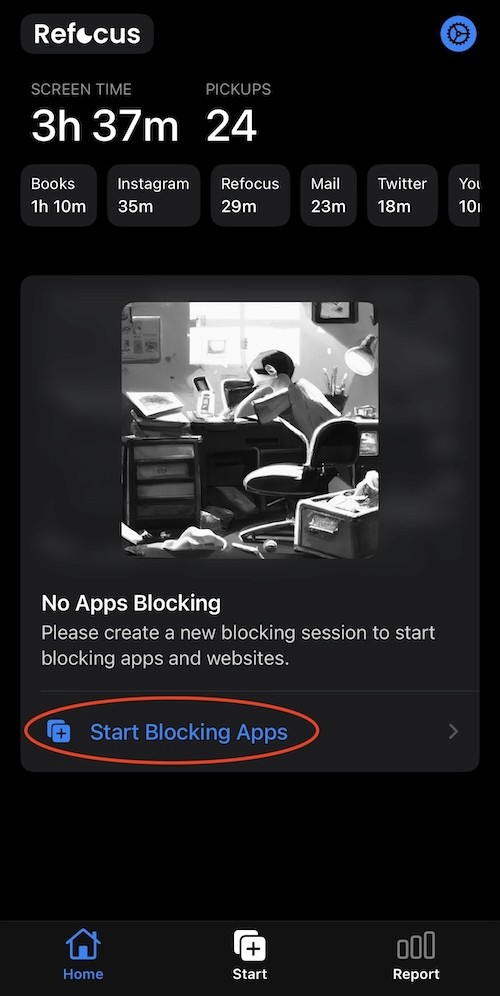
Schedule Locking (or Blocking)
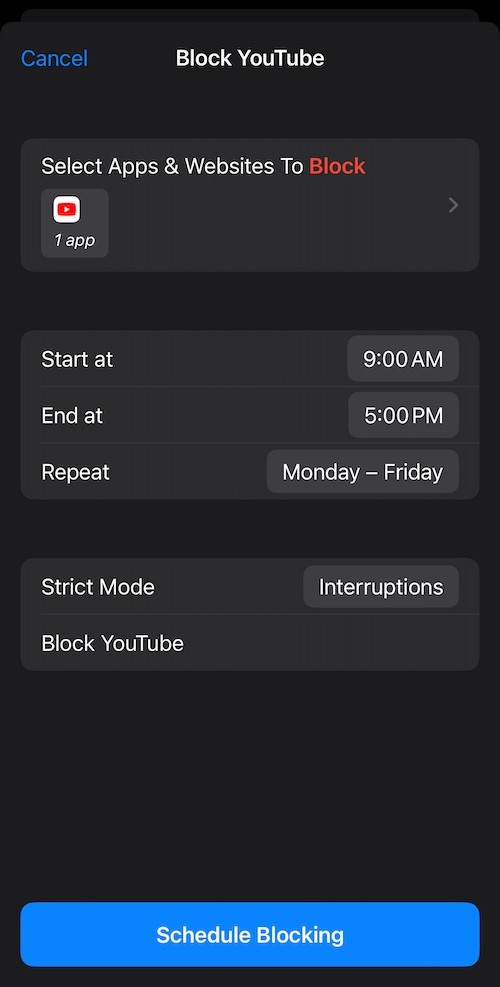
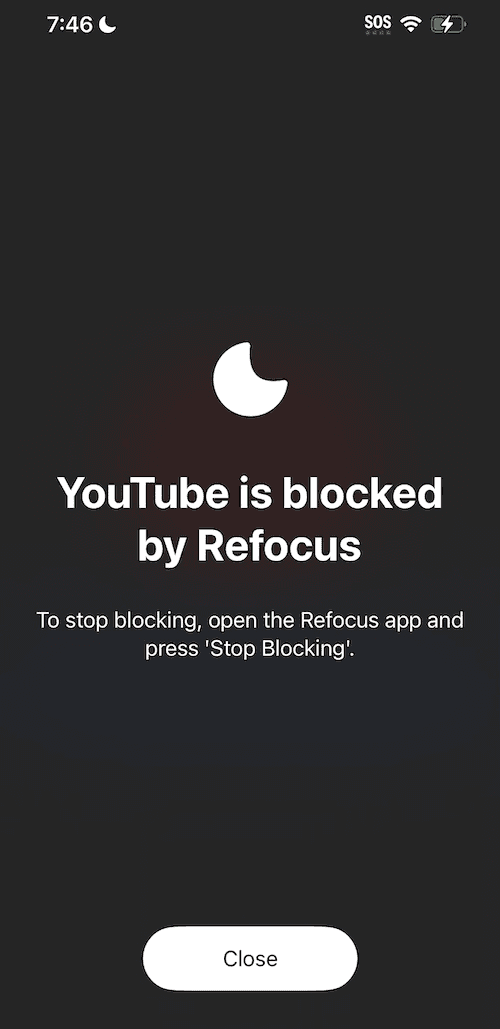
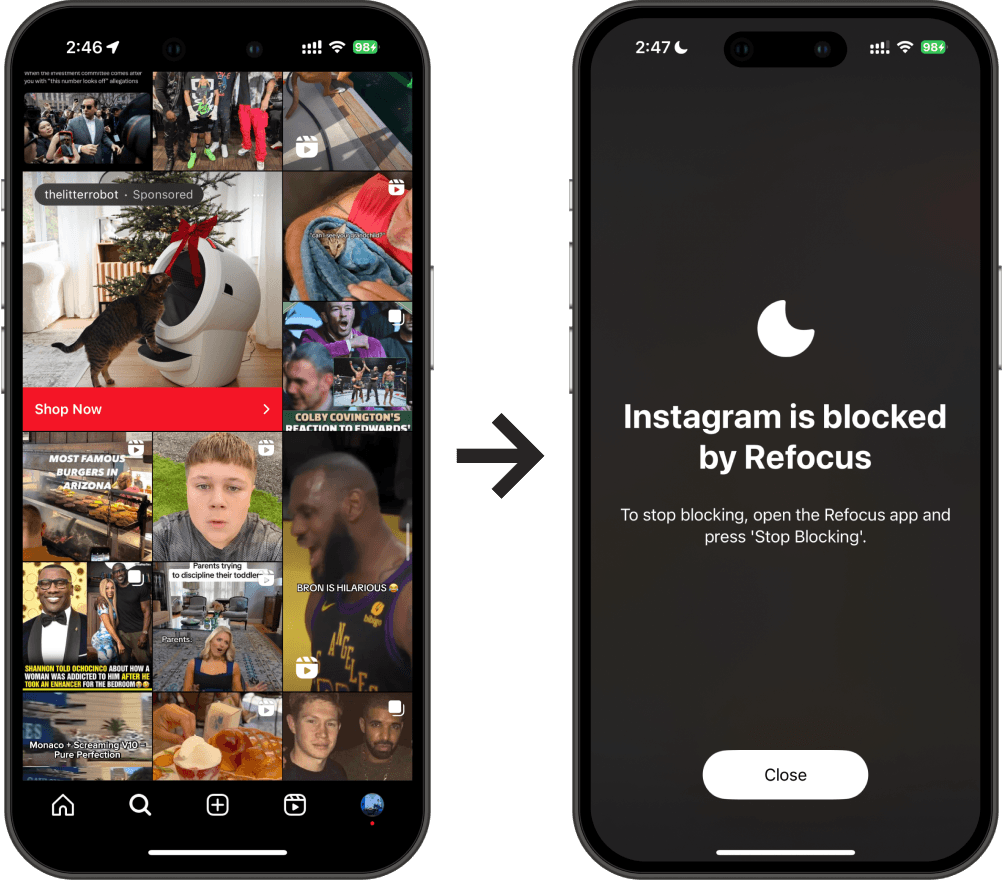
View The Locked App